

Switch workspaces in the sidebar to see each board of forms by status.
Create a workspace
1
Click the plus icon
In the left sidebar, click + next to the WORKSPACES list.
2
Name it
Type a Workspace name. Suggestions such as Customer Research, Onboarding and Events can help you get started.
3
Add a purpose (optional)
Fill in “What is it for? (optional)” if you want to describe the workspace.
4
Create it
Click Create. Forms and members stay scoped to the new workspace.
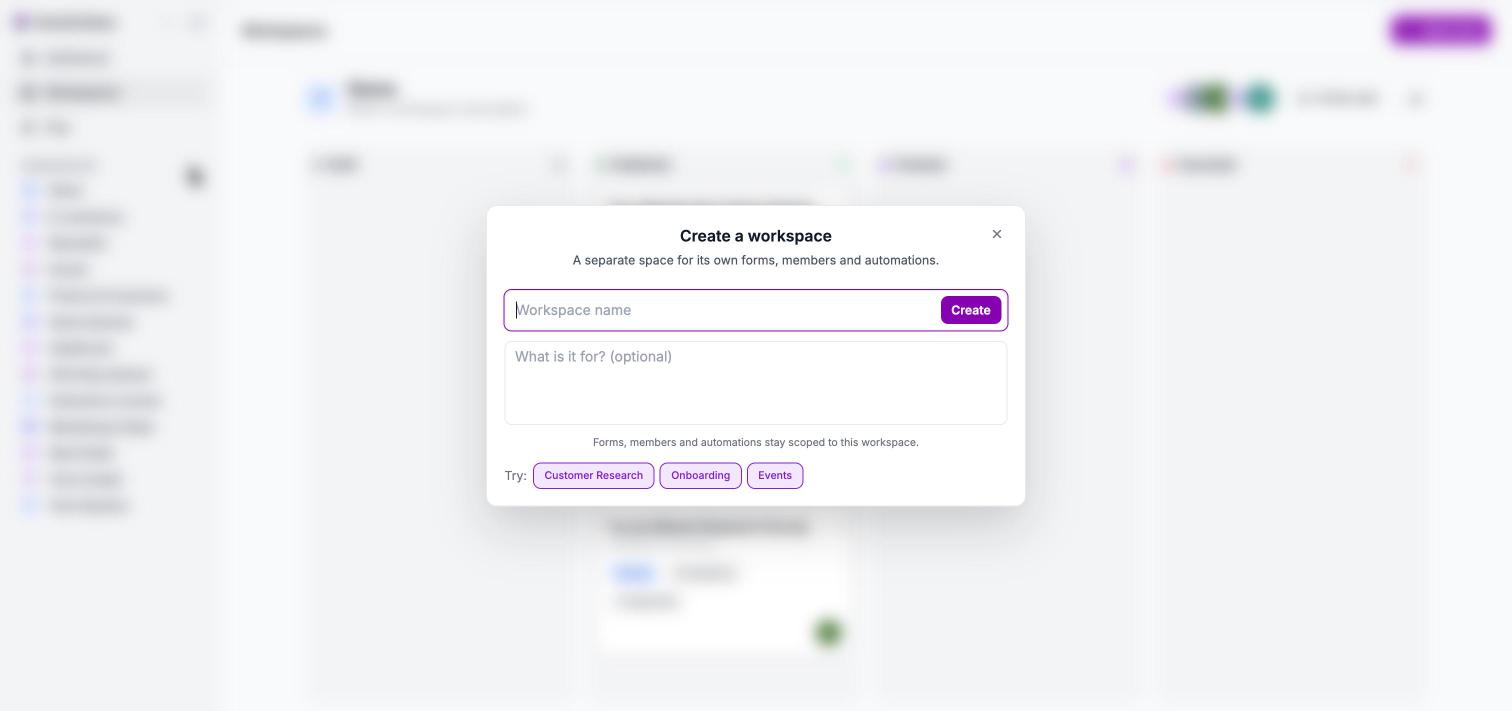
The Create a workspace dialog.
The workspace header
At the top of a workspace you can:- Read the workspace name and edit the description. Click “Enter a workspace description” to add one.
- See member avatars.
- Click Invite user to add people. See Invite your team.
- Click the analytics button to open the Dashboard filtered to this workspace.
The Kanban board
Forms appear as cards in four columns by status: Draft, Published, Finished and Canceled. Each card shows:- The form title and when it was last updated
- A badge for the type: Survey, Quiz or Live
- The number of questions and responses
- The avatar of the creator
The card menu
Click ⋯ on a form card to open its menu.Next steps
Invite your team
Add people to a workspace by email.
Publish and share
Move a form to the Published column.
Results overview
Compare performance on the Dashboard.
Workspaces concepts
How workspaces fit into your organization.