

FormAI Agent is in Beta. Behavior may change, and AI can make mistakes. Review each suggestion before you apply it.
Ask FormAI Agent for a change, then apply its suggestion.
Open the agent
In the editor’s top bar, click Assistant. The FormAI Agent panel opens next to your form with this greeting: “Hi! I’m FormAI, your intelligent form builder assistant. I can help you create, edit, and optimize your surveys. What would you like me to do?”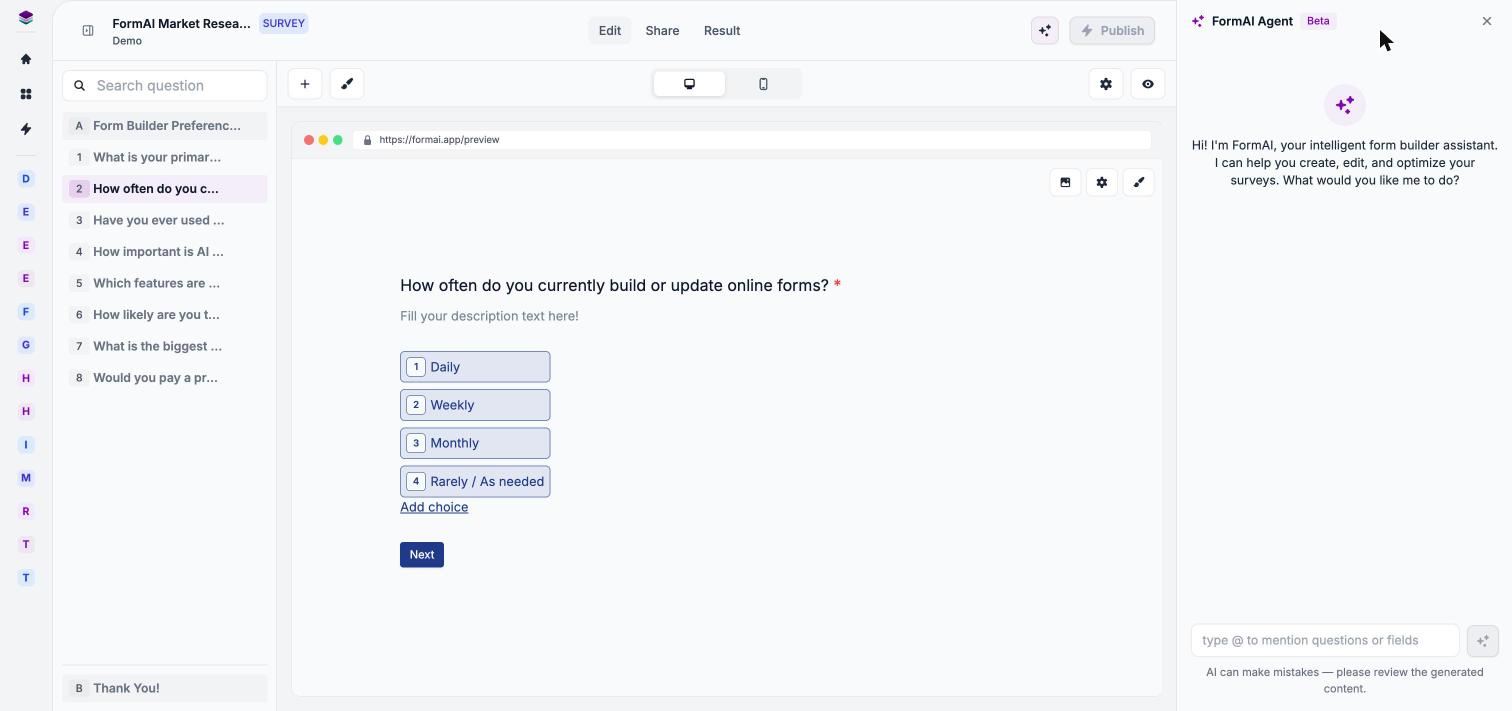
The FormAI Agent panel, open next to the editor.
Make a change
1
Describe the change
Type your request in the message box. For example: “Add a final question asking for the customer’s email so we can send them a 10% discount code, and make it optional.”To point at a specific part of your form, type @ and choose a question or field to mention.
2
Wait for the suggestion
The agent shows “Editing the form”. Click Stop if you want to cancel the request. When it finishes, it replies with a summary, for example “I’ve made 1 change(s) to your form.” and asks “My suggestion is displayed above. Do you want to apply it?”
3
Preview the change
Click Preview to see your form with the proposed change before it is committed.
4
Apply it
Click Apply to commit the change. The agent confirms with “Changes applied”, and the outline on the left updates.
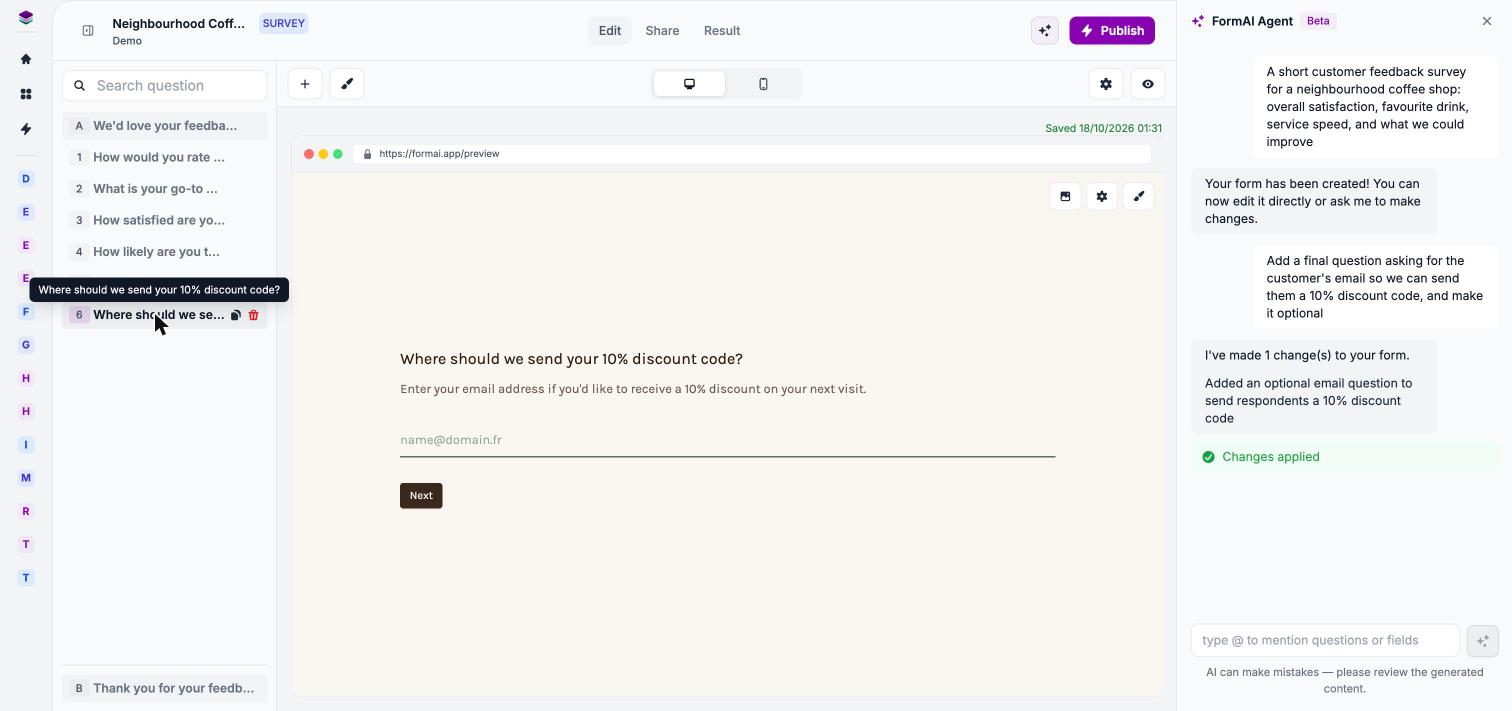
After you click Apply, the new question appears in the outline.
Requests to try
These are examples to try, not a complete list of what the agent can do. Be specific, and use @ to point at the question you mean.- Add a question. “Add a rating question about service speed after question 3.”
- Reword. “Make the wording of the first question friendlier and shorter.”
- Reorder. “Move the open text question to the end.”
- Change the theme. “Switch to a darker theme with a green accent.”
AI credits
Agent edits use AI credits from your organization’s monthly allowance. Manual edits do not. If your allowance runs out, AI actions pause, but your published forms keep collecting responses. See Plans and AI credits.Next steps
Preview
See your draft on desktop and mobile.
Themes
Create and manage themes yourself.
Question settings
Make questions required, randomize choices, and more.
Publish and share
Publish your form when it is ready.