

Open Form settings from the gear icon, then switch from general to customization.
General
The general tab controls how your form behaves and what respondents see around the questions.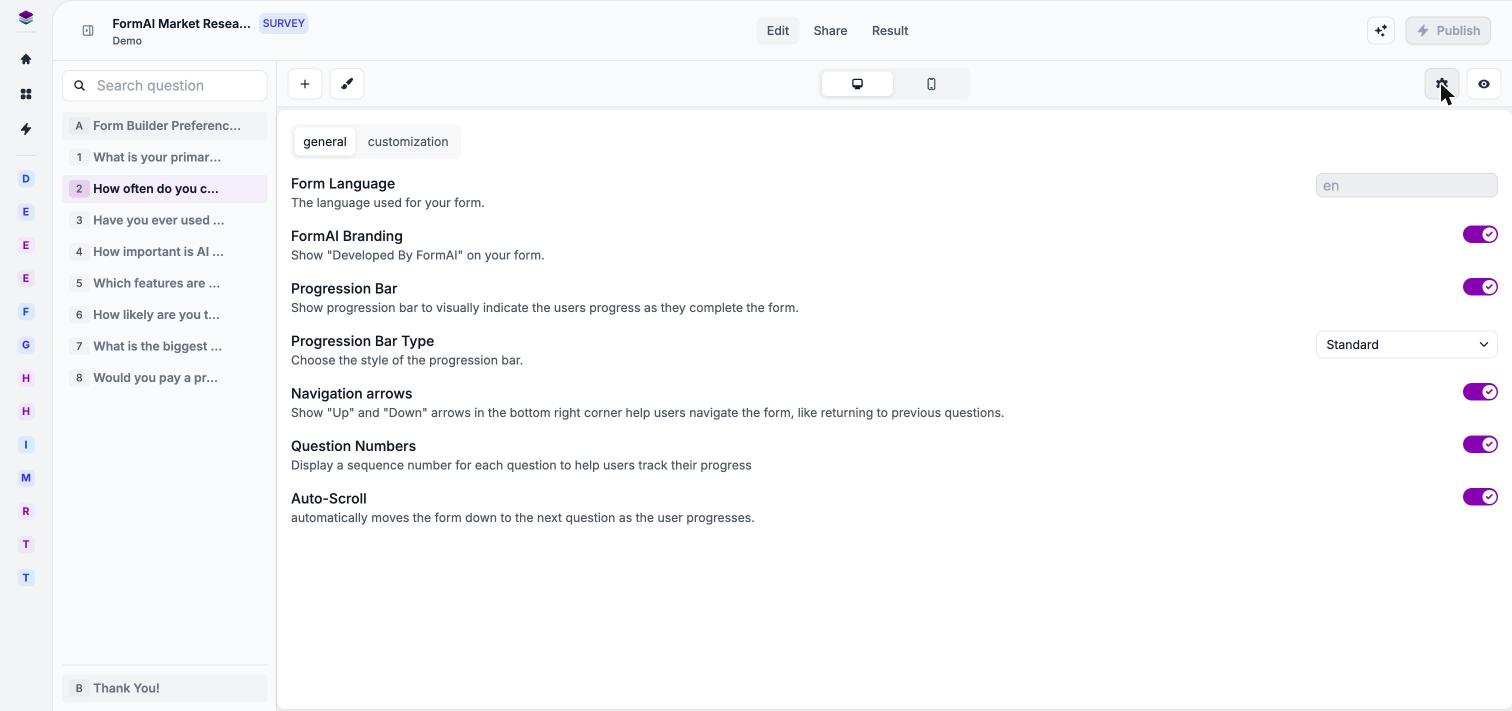
Form settings, general tab.
Removing the “Developed by FormAI” badge is a paid-plan feature. See Plans and AI credits.
Quiz settings
Quiz forms add two more settings on the general tab:
For correct answers, points, and penalties, see Scoring and answers.
Customization
The customization tab lets you rewrite the text respondents see on buttons, placeholders, and error messages. Use it to match your tone or to write them in your own words. The table lists each setting with the default text shown in the app.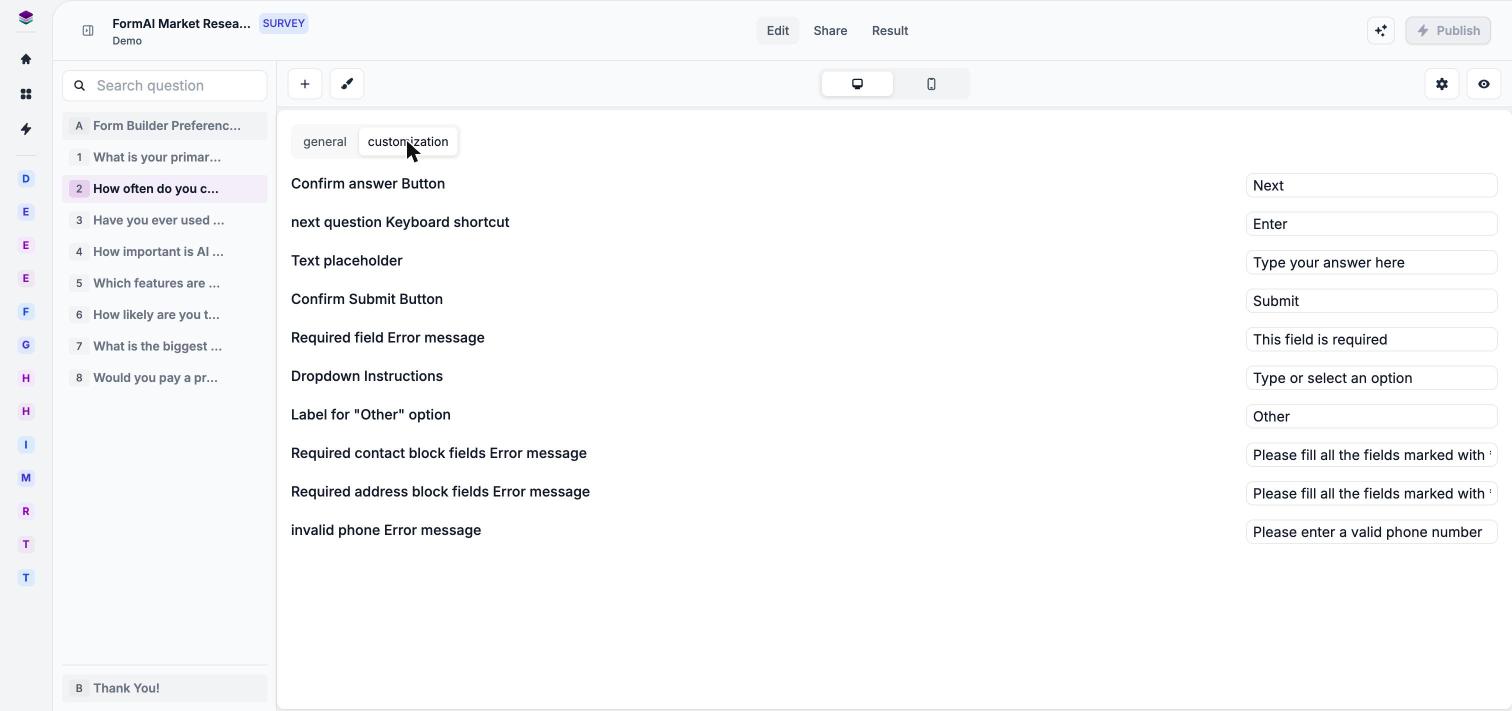
Form settings, customization tab.
Next steps
Question settings
Settings for individual questions, such as Required.
Scoring and answers
Set up correct answers and scoring for a quiz.
Preview
See how your settings look to respondents.
Publish and share
Publish the form and share a link.