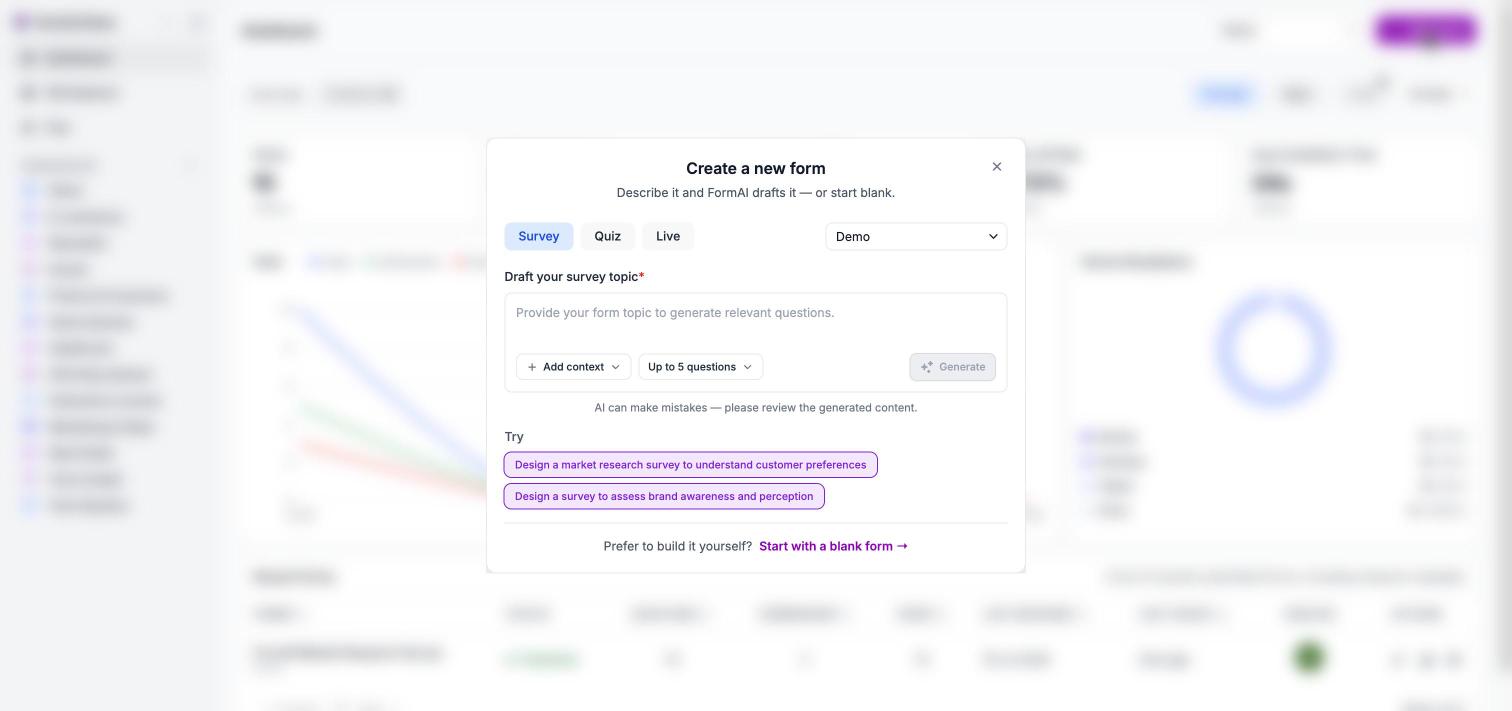
On the Dashboard, click New form at the top right. The Create a new form dialog opens with the subtitle “Describe it and FormAI drafts it — or start blank.”
The Create a new form dialog, with example prompts under Try.
2
Choose a type and workspace
Pick Survey, Quiz, or Live from the tabs, and choose the workspace the form should live in using the selector on the right. See form types if you are not sure which to pick.
3
Describe your form
Type your topic into the field marked “Draft your survey topic”. The placeholder reads “Provide your form topic to generate relevant questions.”Not sure what to write? Click one of the Try examples under the field to fill it in, then edit it.
4
Add context (optional)
Open the Add context menu to draft from a PDF document or a Web page instead of starting from a description alone. See Add context.
5
Choose how many questions
Open the question count menu and pick a size. See Question count below.
6
Click Generate
The editor opens right away with “Building questions…”. In our testing the draft took about 20 to 30 seconds to appear.
Write a stronger prompt
The more FormAI knows, the closer the first draft will be. Try including:
Audience. Who is answering? For example, “customers who visited in the last month” or “new hires in their first week”.
Goal. What do you want to learn or measure? For example, “find out what slows down checkout”.
Length. How long should it be? You can also set this with the question count menu.
Tone. For example, “friendly and informal” or “formal and concise”.
Language. Say which language the questions should be written in. You can also check Form Language in form settings.
Example prompt:
A short customer feedback survey for a neighbourhood coffee shop: overall satisfaction, favourite drink, service speed, and what we could improve.
The question count menu sets the size of the draft.
Option
Use it for
Up to 5 · quick pulse
A fast check-in with a handful of questions.
About 10 · standard
A typical survey or quiz.
15 or more · deep dive
Longer research or a thorough quiz.
The dialog reminds you that “Surveys finish best under 8 questions — completion drops after that.” Shorter surveys tend to get more complete responses.
FormAI drafts a complete form, not just a list of questions:
A welcome screen with a title and description.
Questions of types that fit your topic.
An end screen (“Thank you”).
A matching theme that fits your topic.
For example, the prompt above produced a welcome screen, five questions (a star rating, a multiple choice question about a go-to order, a satisfaction question, a 0 to 10 recommendation question, and an open text question), a thank-you screen, and a coffee-colored theme.Your form saves automatically. A “Saved” indicator with the date and time appears above the preview.
AI can make mistakes. FormAI reminds you in the dialog: “AI can make mistakes — please review the generated content.” Read every question, check the answer options, and confirm which questions are required before you publish. For quizzes, also check the correct answers in Scoring and answers.
Generating a form uses AI credits. Each plan includes a monthly AI credit allowance for your organization. Manual edits, publishing, sharing, collecting responses, and viewing results do not use credits. If you run out, AI actions pause, but published forms keep collecting responses. See Plans and AI credits and pricing for plan details.
{"docsConfig":{"theme":"mint","$schema":"https://mintlify.com/docs.json","name":"FormAI Documentation","colors":{"primary":"#8800B2","light":"#D6C1E5","dark":"#6F0090"},"logo":{"light":"https://mintcdn.com/formai-app/NylfuoXvqlxfU2M8/logo/light.svg?fit=max\u0026auto=format\u0026n=NylfuoXvqlxfU2M8\u0026q=85\u0026s=a5a19e66c42b0883632548e2ad14a9bd","dark":"https://mintcdn.com/formai-app/NylfuoXvqlxfU2M8/logo/dark.svg?fit=max\u0026auto=format\u0026n=NylfuoXvqlxfU2M8\u0026q=85\u0026s=89fb87d41f519c9ddede9a6e64a2019d","href":"https://docs.formai.app"},"favicon":"https://mintcdn.com/formai-app/NylfuoXvqlxfU2M8/favicon.png?fit=max\u0026auto=format\u0026n=NylfuoXvqlxfU2M8\u0026q=85\u0026s=96b5b647f24df1c7fa1e3317d1d3baf7","navbar":{"links":[{"href":"https://formai.app","label":"Website"},{"href":"mailto:contact@formai.app","label":"Contact us"}],"primary":{"type":"button","label":"Get started free","href":"https://ui.formai.app/auth/signup"}},"footer":{"socials":{"x":"https://x.com/formai_app","github":"https://github.com/formai-app","linkedin":"https://linkedin.com/company/formai-app","facebook":"https://www.facebook.com/profile.php?id=61571348107302"},"links":[{"header":"Product","items":[{"label":"Website","href":"https://formai.app"},{"label":"Pricing","href":"https://formai.app/pricing"},{"label":"Book a demo","href":"https://calcom.exceev.com/team/formai/demo"}]},{"header":"Documentation","items":[{"label":"Getting started","href":"/"},{"label":"User guide","href":"/user-guide/introduction"}]},{"header":"Company","items":[{"label":"Exceev","href":"https://exceev.com"},{"label":"Contact us","href":"mailto:contact@formai.app"}]},{"header":"Legal","items":[{"label":"Privacy","href":"https://formai.app/privacy-policy"},{"label":"Terms","href":"https://formai.app/terms-of-service"}]}]},"styling":{"latex":false},"navigation":{"languages":[{"language":"en","href":""},{"language":"fr","footer":{"socials":{"x":"https://x.com/formai_app","github":"https://github.com/formai-app","linkedin":"https://linkedin.com/company/formai-app","facebook":"https://www.facebook.com/profile.php?id=61571348107302"},"links":[{"header":"Produit","items":[{"label":"Site web","href":"https://formai.app/fr"},{"label":"Tarifs","href":"https://formai.app/fr/pricing"},{"label":"Réserver une démo","href":"https://calcom.exceev.com/team/formai/demo"}]},{"header":"Documentation","items":[{"label":"Bien démarrer","href":"/fr"},{"label":"Guide de l'utilisateur","href":"/fr/user-guide/introduction"}]},{"header":"Entreprise","items":[{"label":"Exceev","href":"https://exceev.com"},{"label":"Nous contacter","href":"mailto:contact@formai.app"}]},{"header":"Mentions légales","items":[{"label":"Confidentialité","href":"https://formai.app/fr/privacy-policy"},{"label":"Conditions","href":"https://formai.app/fr/terms-of-service"}]}]},"navbar":{"links":[{"href":"https://formai.app/fr","label":"Site web"},{"href":"mailto:contact@formai.app","label":"Nous contacter"}],"primary":{"type":"button","label":"Commencer gratuitement","href":"https://ui.formai.app/auth/signup"}},"href":"fr"}]}},"deployment":{"deploymentMetadataValue":{"subdomain":"formai-app","hasAudioNarration":false,"actualSubdomain":"formai-app","customDomains":["docs.formai.app"],"gitSource":{"type":"github","owner":"formai-app","repo":"formai-marketing-site","deployBranch":"main","contentDirectory":"docs","isPrivate":true,"mountPath":"","label":""},"chroma":{"latestBuiltDeploymentHistoryId":"6ad3fc11a3b331a72e09f7ef","collectionId":"894e82a1-0abd-4503-b63c-3e98804264df","liveDeploymentHistoryId":"6ad3fc11a3b331a72e09f7ef","schemaVersion":"v3"},"entitlements":{"AI_CHAT":{"status":"ENABLED"},"WEB_MCP":{"status":"ENABLED"},"NARRATION":{"status":"ENABLED"}},"buildId":"6ad538326f47e5e9f93b5c24","clientVersion":"0.0.3883","searchFilterCounts":[{"language":"default","tag":"Get started","count":2}]},"assistantConfig":{"enableAskAiButton":false,"enableStarterQuestions":false,"enableContextualStarterQuestions":false,"enableAskAiSearchBar":true},"hasChatPermissions":false,"hasWebMcpPermissions":true,"toggles":[{"name":"kill-isr","enabled":true,"variant":{"name":"disabled","enabled":false,"feature_enabled":true},"impressionData":false},{"name":"agent-mintlify-slack","enabled":true,"variant":{"name":"disabled","enabled":false,"feature_enabled":true},"impressionData":false},{"name":"editor-v7-file-tree","enabled":true,"variant":{"name":"disabled","enabled":false,"feature_enabled":true},"impressionData":false},{"name":"agent-integrations-settings","enabled":true,"variant":{"name":"disabled","enabled":false,"feature_enabled":true},"impressionData":false},{"name":"automations-pr-grouping","enabled":true,"variant":{"name":"disabled","enabled":false,"feature_enabled":true},"impressionData":false},{"name":"custom-prefix","enabled":true,"variant":{"name":"disabled","enabled":false,"feature_enabled":true},"impressionData":false},{"name":"analytics-v7","enabled":true,"variant":{"name":"disabled","enabled":false,"feature_enabled":true},"impressionData":false},{"name":"user-flows-analytics","enabled":true,"variant":{"name":"disabled","enabled":false,"feature_enabled":true},"impressionData":false},{"name":"no-publish-flow","enabled":true,"variant":{"name":"disabled","enabled":false,"feature_enabled":true},"impressionData":false},{"name":"llms-txt-v2","enabled":true,"variant":{"name":"disabled","enabled":false,"feature_enabled":true},"impressionData":false},{"name":"pause-universal-search-reconcile","enabled":true,"variant":{"name":"disabled","enabled":false,"feature_enabled":true},"impressionData":false},{"name":"snapshot-serving-live","enabled":true,"variant":{"name":"disabled","enabled":false,"feature_enabled":true},"impressionData":false},{"name":"stripTemperatureMiddleware","enabled":true,"variant":{"name":"disabled","enabled":false,"feature_enabled":true},"impressionData":false},{"name":"per-site-search-delta","enabled":true,"variant":{"name":"disabled","enabled":false,"feature_enabled":true},"impressionData":false},{"name":"support-platform-pylon-zendesk","enabled":true,"variant":{"name":"disabled","enabled":false,"feature_enabled":true},"impressionData":false},{"name":"editor-branches-v2-autocommit","enabled":true,"variant":{"name":"disabled","enabled":false,"feature_enabled":true},"impressionData":false},{"name":"editor-branches-v2","enabled":true,"variant":{"name":"disabled","enabled":false,"feature_enabled":true},"impressionData":false},{"name":"snapshot-serving","enabled":true,"variant":{"name":"disabled","enabled":false,"feature_enabled":true},"impressionData":false},{"name":"instant-rollback","enabled":true,"variant":{"name":"disabled","enabled":false,"feature_enabled":true},"impressionData":false},{"name":"granular-notifications-server","enabled":true,"variant":{"name":"disabled","enabled":false,"feature_enabled":true},"impressionData":false},{"name":"granular-notifications","enabled":true,"variant":{"name":"disabled","enabled":false,"feature_enabled":true},"impressionData":false},{"name":"editor-private-page-search","enabled":true,"variant":{"name":"disabled","enabled":false,"feature_enabled":true},"impressionData":false},{"name":"automations-fable","enabled":true,"variant":{"name":"disabled","enabled":false,"feature_enabled":true},"impressionData":false},{"name":"fixed-ai-action-pricing","enabled":true,"variant":{"name":"disabled","enabled":false,"feature_enabled":true},"impressionData":false},{"name":"automation-resolve-merge-conflict","enabled":true,"variant":{"name":"disabled","enabled":false,"feature_enabled":true},"impressionData":false},{"name":"scoped-publishing","enabled":true,"variant":{"name":"disabled","enabled":false,"feature_enabled":true},"impressionData":false},{"name":"mintql","enabled":true,"variant":{"name":"disabled","enabled":false,"feature_enabled":true},"impressionData":false},{"name":"page-level-analytics","enabled":true,"variant":{"name":"disabled","enabled":false,"feature_enabled":true},"impressionData":false},{"name":"teamspace","enabled":true,"variant":{"name":"disabled","enabled":false,"feature_enabled":true},"impressionData":false},{"name":"editor-version-history-v2","enabled":true,"variant":{"name":"disabled","enabled":false,"feature_enabled":true},"impressionData":false},{"name":"editor-nav-generations","enabled":true,"variant":{"name":"disabled","enabled":false,"feature_enabled":true},"impressionData":false},{"name":"workspace-projects","enabled":true,"variant":{"name":"disabled","enabled":false,"feature_enabled":true},"impressionData":false},{"name":"assistant-v5","enabled":true,"variant":{"name":"disabled","enabled":false,"feature_enabled":true},"impressionData":false},{"name":"byok-sep-25","enabled":true,"variant":{"name":"disabled","enabled":false,"feature_enabled":true},"impressionData":false},{"name":"revalidation-jwt","enabled":true,"variant":{"name":"disabled","enabled":false,"feature_enabled":true},"impressionData":false},{"name":"editor-agent-model-picker","enabled":true,"variant":{"name":"disabled","enabled":false,"feature_enabled":true},"impressionData":false},{"name":"client-snapshot-docs-config","enabled":true,"variant":{"name":"disabled","enabled":false,"feature_enabled":true},"impressionData":false},{"name":"hobby-abuse-scan","enabled":true,"variant":{"name":"disabled","enabled":false,"feature_enabled":true},"impressionData":false}],"isAtlas":false,"googleFontsInlined":false},"customCss":[],"page":{"pagePath":"user-guide/create/generate-with-ai","slug":"/user-guide/create/generate-with-ai","pageMetadata":{"title":"Generate a form with AI","sidebarTitle":"Generate with AI","description":"Describe a survey, quiz, or live session in plain language and FormAI drafts the questions, welcome and end screens, and a matching theme.","icon":"sparkles","href":"/user-guide/create/generate-with-ai"},"description":{"compiledSource":"\"use strict\";\nconst {jsx: _jsx} = arguments[0];\nconst {useMDXComponents: _provideComponents} = arguments[0];\nfunction _createMdxContent(props) {\n const _components = {\n p: \"p\",\n ..._provideComponents(),\n ...props.components\n };\n return _jsx(_components.p, {\n children: \"Describe a survey, quiz, or live session in plain language and FormAI drafts the questions, welcome and end screens, and a matching theme.\"\n });\n}\nfunction MDXContent(props = {}) {\n const {wrapper: MDXLayout} = {\n ..._provideComponents(),\n ...props.components\n };\n return MDXLayout ? _jsx(MDXLayout, {\n ...props,\n children: _jsx(_createMdxContent, {\n ...props\n })\n }) : _createMdxContent(props);\n}\nreturn {\n default: MDXContent\n};\n","frontmatter":{},"scope":{}},"pageType":"default","mdx":{"mdxSource":{"compiledSource":"\"use strict\";const{Fragment:_Fragment,jsx:_jsx,jsxs:_jsxs}=arguments[0];const{useMDXComponents:_provideComponents}=arguments[0];function _createMdxContent(props){const _components={a:`a`,blockquote:`blockquote`,li:`li`,p:`p`,strong:`strong`,tbody:`tbody`,td:`td`,th:`th`,thead:`thead`,tr:`tr`,ul:`ul`,..._provideComponents(),...props.components},{Accordion,Card,CardGroup,Frame,Heading,Note,OptimizedImage,Step,Steps,Table,Tip}=_components;if(!Accordion)_missingMdxReference(`Accordion`,true);if(!Card)_missingMdxReference(`Card`,true);if(!CardGroup)_missingMdxReference(`CardGroup`,true);if(!Frame)_missingMdxReference(`Frame`,true);if(!Heading)_missingMdxReference(`Heading`,true);if(!Note)_missingMdxReference(`Note`,true);if(!OptimizedImage)_missingMdxReference(`OptimizedImage`,true);if(!Step)_missingMdxReference(`Step`,true);if(!Steps)_missingMdxReference(`Steps`,true);if(!Table)_missingMdxReference(`Table`,true);if(!Tip)_missingMdxReference(`Tip`,true);return _jsxs(_Fragment,{children:[_jsxs(_components.p,{children:[`Describe what you need and FormAI drafts the whole form for you. You then refine it in the editor or with `,_jsx(_components.a,{href:`/user-guide/editor/edit-with-ai-agent`,children:`FormAI Agent`}),`.`]}),`\n`,_jsx(Frame,{caption:`Describe the form, select Generate, and the questions stream into the editor.`,children:_jsx(`video`,{autoPlay:true,muted:true,loop:true,playsInline:true,className:`mint-w-full`,src:`https://mintcdn.com/formai-app/XBaZxbZCaxkDZx0d/videos/create-with-ai.mp4?fit=max\u0026auto=format\u0026n=XBaZxbZCaxkDZx0d\u0026q=85\u0026s=1722f5d9664580b4d468dfe849a27fb7`,\"aria-label\":`Opening the New form dialog, typing a prompt, selecting Generate, then watching questions stream into the editor after Building questions… and clicking through them`,\"data-path\":`videos/create-with-ai.mp4`})}),`\n`,_jsx(Heading,{level:`2`,id:`generate-a-form`,children:`Generate a form`}),`\n`,_jsxs(Steps,{children:[_jsxs(Step,{title:`Open the New form dialog`,children:[_jsxs(_components.p,{children:[`On the `,_jsx(_components.strong,{children:`Dashboard`}),`, click `,_jsx(_components.strong,{children:`New form`}),` at the top right. The `,_jsx(_components.strong,{children:`Create a new form`}),` dialog opens with the subtitle “Describe it and FormAI drafts it — or start blank.”`]}),_jsx(Frame,{caption:`The Create a new form dialog, with example prompts under Try.`,children:_jsx(OptimizedImage,{src:`https://mintcdn.com/formai-app/XBaZxbZCaxkDZx0d/images/getting-started/create-form-dialog.jpg?fit=max\u0026auto=format\u0026n=XBaZxbZCaxkDZx0d\u0026q=85\u0026s=e19d6f1b5163655e9d2177f13a7a26df`,alt:`The Create a new form dialog on the Survey tab with an empty topic field, the Add context menu, and Try example prompts`,\"data-og-width\":`1512`,width:`1512`,\"data-og-height\":`711`,height:`711`,\"data-path\":`images/getting-started/create-form-dialog.jpg`,\"data-optimize\":`true`,\"data-opv\":`3`,srcset:`https://mintcdn.com/formai-app/XBaZxbZCaxkDZx0d/images/getting-started/create-form-dialog.jpg?w=280\u0026fit=max\u0026auto=format\u0026n=XBaZxbZCaxkDZx0d\u0026q=85\u0026s=98e026249385fd1e3c5618e317137224 280w, https://mintcdn.com/formai-app/XBaZxbZCaxkDZx0d/images/getting-started/create-form-dialog.jpg?w=560\u0026fit=max\u0026auto=format\u0026n=XBaZxbZCaxkDZx0d\u0026q=85\u0026s=ad08bda2cacf4ba40a1a974956d9b08e 560w, https://mintcdn.com/formai-app/XBaZxbZCaxkDZx0d/images/getting-started/create-form-dialog.jpg?w=840\u0026fit=max\u0026auto=format\u0026n=XBaZxbZCaxkDZx0d\u0026q=85\u0026s=4763ec2542532233378dcbf69d88af8b 840w, https://mintcdn.com/formai-app/XBaZxbZCaxkDZx0d/images/getting-started/create-form-dialog.jpg?w=1100\u0026fit=max\u0026auto=format\u0026n=XBaZxbZCaxkDZx0d\u0026q=85\u0026s=f683593e31532b3f7ce968ad82e750f0 1100w, https://mintcdn.com/formai-app/XBaZxbZCaxkDZx0d/images/getting-started/create-form-dialog.jpg?w=1650\u0026fit=max\u0026auto=format\u0026n=XBaZxbZCaxkDZx0d\u0026q=85\u0026s=cc1c1f2a7fd8413a43be51a22cd80358 1650w, https://mintcdn.com/formai-app/XBaZxbZCaxkDZx0d/images/getting-started/create-form-dialog.jpg?w=2500\u0026fit=max\u0026auto=format\u0026n=XBaZxbZCaxkDZx0d\u0026q=85\u0026s=21007d3a75503a1f2dc8e8b75bef40f5 2500w`})})]}),_jsx(Step,{title:`Choose a type and workspace`,children:_jsxs(_components.p,{children:[`Pick `,_jsx(_components.strong,{children:`Survey`}),`, `,_jsx(_components.strong,{children:`Quiz`}),`, or `,_jsx(_components.strong,{children:`Live`}),` from the tabs, and choose the workspace the form should live in using the selector on the right. See `,_jsx(_components.a,{href:`/core-concepts/form-types`,children:`form types`}),` if you are not sure which to pick.`]})}),_jsxs(Step,{title:`Describe your form`,children:[_jsx(_components.p,{children:`Type your topic into the field marked “Draft your survey topic”. The placeholder reads “Provide your form topic to generate relevant questions.”`}),_jsxs(_components.p,{children:[`Not sure what to write? Click one of the `,_jsx(_components.strong,{children:`Try`}),` examples under the field to fill it in, then edit it.`]})]}),_jsx(Step,{title:`Add context (optional)`,children:_jsxs(_components.p,{children:[`Open the `,_jsx(_components.strong,{children:`Add context`}),` menu to draft from a `,_jsx(_components.strong,{children:`PDF document`}),` or a `,_jsx(_components.strong,{children:`Web page`}),` instead of starting from a description alone. See `,_jsx(_components.a,{href:`/user-guide/create/add-context`,children:`Add context`}),`.`]})}),_jsx(Step,{title:`Choose how many questions`,children:_jsxs(_components.p,{children:[`Open the question count menu and pick a size. See `,_jsx(_components.a,{href:`#question-count`,children:`Question count`}),` below.`]})}),_jsx(Step,{title:`Click Generate`,children:_jsx(_components.p,{children:`The editor opens right away with “Building questions…”. In our testing the draft took about 20 to 30 seconds to appear.`})})]}),`\n`,_jsxs(Accordion,{title:`Write a stronger prompt`,icon:`lightbulb`,id:`write-a-stronger-prompt`,children:[_jsx(_components.p,{children:`The more FormAI knows, the closer the first draft will be. Try including:`}),_jsxs(_components.ul,{children:[`\n`,_jsxs(_components.li,{children:[_jsx(_components.strong,{children:`Audience.`}),` Who is answering? For example, “customers who visited in the last month” or “new hires in their first week”.`]}),`\n`,_jsxs(_components.li,{children:[_jsx(_components.strong,{children:`Goal.`}),` What do you want to learn or measure? For example, “find out what slows down checkout”.`]}),`\n`,_jsxs(_components.li,{children:[_jsx(_components.strong,{children:`Length.`}),` How long should it be? You can also set this with the question count menu.`]}),`\n`,_jsxs(_components.li,{children:[_jsx(_components.strong,{children:`Tone.`}),` For example, “friendly and informal” or “formal and concise”.`]}),`\n`,_jsxs(_components.li,{children:[_jsx(_components.strong,{children:`Language.`}),` Say which language the questions should be written in. You can also check `,_jsx(_components.strong,{children:`Form Language`}),` in `,_jsx(_components.a,{href:`/user-guide/settings/form-settings`,children:`form settings`}),`.`]}),`\n`]}),_jsx(_components.p,{children:`Example prompt:`}),_jsxs(_components.blockquote,{children:[`\n`,_jsx(_components.p,{children:`A short customer feedback survey for a neighbourhood coffee shop: overall satisfaction, favourite drink, service speed, and what we could improve.`}),`\n`]})]}),`\n`,_jsx(Heading,{level:`2`,id:`question-count`,children:`Question count`}),`\n`,_jsx(_components.p,{children:`The question count menu sets the size of the draft.`}),`\n`,_jsxs(Table,{children:[_jsx(_components.thead,{children:_jsxs(_components.tr,{children:[_jsx(_components.th,{children:`Option`}),_jsx(_components.th,{children:`Use it for`})]})}),_jsxs(_components.tbody,{children:[_jsxs(_components.tr,{children:[_jsx(_components.td,{children:_jsx(_components.strong,{children:`Up to 5 · quick pulse`})}),_jsx(_components.td,{children:`A fast check-in with a handful of questions.`})]}),_jsxs(_components.tr,{children:[_jsx(_components.td,{children:_jsx(_components.strong,{children:`About 10 · standard`})}),_jsx(_components.td,{children:`A typical survey or quiz.`})]}),_jsxs(_components.tr,{children:[_jsx(_components.td,{children:_jsx(_components.strong,{children:`15 or more · deep dive`})}),_jsx(_components.td,{children:`Longer research or a thorough quiz.`})]})]})]}),`\n`,_jsx(Tip,{children:_jsx(_components.p,{children:`The dialog reminds you that “Surveys finish best under 8 questions — completion drops after that.” Shorter surveys tend to get more complete responses.`})}),`\n`,_jsx(Heading,{level:`2`,id:`what-gets-generated`,children:`What gets generated`}),`\n`,_jsx(_components.p,{children:`FormAI drafts a complete form, not just a list of questions:`}),`\n`,_jsxs(_components.ul,{children:[`\n`,_jsxs(_components.li,{children:[`A `,_jsx(_components.strong,{children:`welcome screen`}),` with a title and description.`]}),`\n`,_jsxs(_components.li,{children:[_jsx(_components.strong,{children:`Questions`}),` of types that fit your topic.`]}),`\n`,_jsxs(_components.li,{children:[`An `,_jsx(_components.strong,{children:`end screen`}),` (“Thank you”).`]}),`\n`,_jsxs(_components.li,{children:[`A `,_jsx(_components.strong,{children:`matching theme`}),` that fits your topic.`]}),`\n`]}),`\n`,_jsx(_components.p,{children:`For example, the prompt above produced a welcome screen, five questions (a star rating, a multiple choice question about a go-to order, a satisfaction question, a 0 to 10 recommendation question, and an open text question), a thank-you screen, and a coffee-colored theme.`}),`\n`,_jsx(_components.p,{children:`Your form saves automatically. A “Saved” indicator with the date and time appears above the preview.`}),`\n`,_jsx(Heading,{level:`2`,id:`review-before-you-publish`,children:`Review before you publish`}),`\n`,_jsx(Note,{children:_jsxs(_components.p,{children:[`AI can make mistakes. FormAI reminds you in the dialog: “AI can make mistakes — please review the generated content.” Read every question, check the answer options, and confirm which questions are required before you publish. For quizzes, also check the correct answers in `,_jsx(_components.a,{href:`/user-guide/quizzes/scoring-and-answers`,children:`Scoring and answers`}),`.`]})}),`\n`,_jsx(Heading,{level:`2`,id:`ai-credits`,children:`AI credits`}),`\n`,_jsxs(_components.p,{children:[`Generating a form uses AI credits. Each plan includes a monthly AI credit allowance for your organization. Manual edits, publishing, sharing, collecting responses, and viewing results do not use credits. If you run out, AI actions pause, but published forms keep collecting responses. See `,_jsx(_components.a,{href:`/user-guide/account/plans-and-ai-credits`,children:`Plans and AI credits`}),` and `,_jsx(_components.a,{href:`https://formai.app/pricing`,children:`pricing`}),` for plan details.`]}),`\n`,_jsx(Heading,{level:`2`,id:`next-steps`,children:`Next steps`}),`\n`,_jsxs(CardGroup,{cols:2,children:[_jsx(Card,{title:`Add context`,icon:`file-pdf`,href:`/user-guide/create/add-context`,children:_jsx(_components.p,{children:`Draft from a PDF or a web page.`})}),_jsx(Card,{title:`Question types`,icon:`list-check`,href:`/user-guide/editor/question-types`,children:_jsx(_components.p,{children:`See what each question type collects.`})}),_jsx(Card,{title:`Edit with FormAI Agent`,icon:`wand-magic-sparkles`,href:`/user-guide/editor/edit-with-ai-agent`,children:_jsx(_components.p,{children:`Change the draft by chatting with the agent.`})}),_jsx(Card,{title:`Publish and share`,icon:`share-nodes`,href:`/user-guide/share/publish-and-share`,children:_jsx(_components.p,{children:`Publish the form and send it out.`})})]})]})}function MDXContent(props={}){const{wrapper:MDXLayout}={..._provideComponents(),...props.components};return MDXLayout?_jsx(MDXLayout,{...props,children:_jsx(_createMdxContent,{...props})}):_createMdxContent(props)}return{default:MDXContent};function _missingMdxReference(id,component){throw new Error(`Expected `+(component?`component`:`object`)+\" `\"+id+\"` to be defined: you likely forgot to import, pass, or provide it.\")}","frontmatter":{},"scope":{"config":{},"pageMetadata":{"title":"Generate a form with AI","sidebarTitle":"Generate with AI","description":"Describe a survey, quiz, or live session in plain language and FormAI drafts the questions, welcome and end screens, and a matching theme.","icon":"sparkles","href":"/user-guide/create/generate-with-ai"}}},"mdxSourceWithNoJs":null},"mdxExtracts":{"tableOfContents":[{"title":"Generate a form","slug":"generate-a-form","depth":2,"children":[]},{"title":"Question count","slug":"question-count","depth":2,"children":[]},{"title":"What gets generated","slug":"what-gets-generated","depth":2,"children":[]},{"title":"Review before you publish","slug":"review-before-you-publish","depth":2,"children":[]},{"title":"AI credits","slug":"ai-credits","depth":2,"children":[]},{"title":"Next steps","slug":"next-steps","depth":2,"children":[]}],"codeExamples":{}},"jsLinks":[],"dynamicCss":".mint-w-full {\n width: 100%\n}","subdomain":"formai-app","siteName":"FormAI Documentation","title":"Generate a form with AI - FormAI Documentation","navMaps":{"firstHrefInVersion":{},"firstHrefInLanguage":{"en":{"href":"/user-guide/create/generate-with-ai","matchLevel":0},"fr":{"href":"/fr/user-guide/create/generate-with-ai","matchLevel":1}}},"lastModified":"2026-10-18T21:20:57.153Z","originalFileLocation":"user-guide/create/generate-with-ai.mdx","locale":"en"},"headHtml":"\u003cmeta data-mint-head name=\"description\" content=\"Describe a survey, quiz, or live session in plain language and FormAI drafts the questions, welcome and end screens, and a matching theme.\">\u003cmeta data-mint-head name=\"application-name\" content=\"FormAI Documentation\">\u003cmeta data-mint-head name=\"generator\" content=\"Mintlify\">\u003clink data-mint-head rel=\"icon\" type=\"image/png\" sizes=\"192x192\" href=\"/mintlify-assets/_mintlify/favicons/formai-app/z_JxI89uC36y3Ys-/_generated/favicon/android-chrome-192x192.png\" media=\"(prefers-color-scheme: light)\">\u003clink data-mint-head rel=\"apple-touch-icon\" type=\"image/png\" sizes=\"180x180\" href=\"/mintlify-assets/_mintlify/favicons/formai-app/z_JxI89uC36y3Ys-/_generated/favicon/apple-touch-icon.png\">\u003clink data-mint-head rel=\"icon\" type=\"image/png\" sizes=\"16x16\" href=\"/mintlify-assets/_mintlify/favicons/formai-app/z_JxI89uC36y3Ys-/_generated/favicon/favicon-16x16.png\" media=\"(prefers-color-scheme: light)\">\u003clink data-mint-head rel=\"icon\" type=\"image/png\" sizes=\"32x32\" href=\"/mintlify-assets/_mintlify/favicons/formai-app/z_JxI89uC36y3Ys-/_generated/favicon/favicon-32x32.png\" media=\"(prefers-color-scheme: light)\">\u003clink data-mint-head rel=\"shortcut icon\" type=\"image/x-icon\" href=\"/mintlify-assets/_mintlify/favicons/formai-app/z_JxI89uC36y3Ys-/_generated/favicon/favicon.ico\" media=\"(prefers-color-scheme: light)\">\u003clink data-mint-head rel=\"icon\" type=\"image/png\" sizes=\"192x192\" href=\"/mintlify-assets/_mintlify/favicons/formai-app/z_JxI89uC36y3Ys-/_generated/favicon-dark/android-chrome-192x192.png\" media=\"(prefers-color-scheme: dark)\">\u003clink data-mint-head rel=\"icon\" type=\"image/png\" sizes=\"16x16\" href=\"/mintlify-assets/_mintlify/favicons/formai-app/z_JxI89uC36y3Ys-/_generated/favicon-dark/favicon-16x16.png\" media=\"(prefers-color-scheme: dark)\">\u003clink data-mint-head rel=\"icon\" type=\"image/png\" sizes=\"32x32\" href=\"/mintlify-assets/_mintlify/favicons/formai-app/z_JxI89uC36y3Ys-/_generated/favicon-dark/favicon-32x32.png\" media=\"(prefers-color-scheme: dark)\">\u003clink data-mint-head rel=\"shortcut icon\" type=\"image/x-icon\" href=\"/mintlify-assets/_mintlify/favicons/formai-app/z_JxI89uC36y3Ys-/_generated/favicon-dark/favicon.ico\" media=\"(prefers-color-scheme: dark)\">\u003cmeta data-mint-head property=\"og:title\" content=\"Generate a form with AI - FormAI Documentation\">\u003cmeta data-mint-head property=\"og:description\" content=\"Describe a survey, quiz, or live session in plain language and FormAI drafts the questions, welcome and end screens, and a matching theme.\">\u003cmeta data-mint-head property=\"og:site_name\" content=\"FormAI Documentation\">\u003cmeta data-mint-head property=\"og:url\" content=\"https://docs.formai.app/user-guide/create/generate-with-ai\">\u003cmeta data-mint-head property=\"og:type\" content=\"website\">\u003cmeta data-mint-head name=\"twitter:card\" content=\"summary_large_image\">\u003cmeta data-mint-head name=\"twitter:title\" content=\"Generate a form with AI - FormAI Documentation\">\u003cmeta data-mint-head name=\"twitter:description\" content=\"Describe a survey, quiz, or live session in plain language and FormAI drafts the questions, welcome and end screens, and a matching theme.\">\u003cmeta data-mint-head name=\"msapplication-config\" content=\"/mintlify-assets/_mintlify/favicons/formai-app/z_JxI89uC36y3Ys-/_generated/favicon/browserconfig.xml\">\u003cmeta data-mint-head name=\"apple-mobile-web-app-title\" content=\"FormAI Documentation\">\u003cmeta data-mint-head name=\"msapplication-TileColor\" content=\"#8800B2\">\u003clink data-mint-head rel=\"canonical\" href=\"https://docs.formai.app/user-guide/create/generate-with-ai\">\u003clink data-mint-head rel=\"alternate\" type=\"application/xml\" href=\"/sitemap.xml\">\u003clink data-mint-head rel=\"alternate\" type=\"text/markdown\" href=\"/user-guide/create/generate-with-ai.md\">\u003clink data-mint-head rel=\"alternate\" hreflang=\"en\" href=\"https://docs.formai.app/user-guide/create/generate-with-ai\">\u003clink data-mint-head rel=\"alternate\" hreflang=\"fr\" href=\"https://docs.formai.app/fr/user-guide/create/generate-with-ai\">\u003clink data-mint-head rel=\"alternate\" hreflang=\"x-default\" href=\"https://docs.formai.app/user-guide/create/generate-with-ai\">\u003cscript data-mint-head type=\"application/ld+json\">{\"@context\":\"https://schema.org\",\"@graph\":[{\"@type\":\"Organization\",\"@id\":\"https://docs.formai.app/#organization\",\"name\":\"FormAI Documentation\",\"url\":\"https://docs.formai.app\",\"logo\":{\"@type\":\"ImageObject\",\"url\":\"https://mintcdn.com/formai-app/NylfuoXvqlxfU2M8/logo/light.svg?fit=max\u0026auto=format\u0026n=NylfuoXvqlxfU2M8\u0026q=85\u0026s=a5a19e66c42b0883632548e2ad14a9bd\"}},{\"@type\":\"WebSite\",\"@id\":\"https://docs.formai.app#website\",\"name\":\"FormAI Documentation\",\"url\":\"https://docs.formai.app\",\"publisher\":{\"@id\":\"https://docs.formai.app/#organization\"}},{\"@type\":\"WebPage\",\"@id\":\"https://docs.formai.app/user-guide/create/generate-with-ai#webpage\",\"url\":\"https://docs.formai.app/user-guide/create/generate-with-ai\",\"name\":\"Generate a form with AI\",\"description\":\"Describe a survey, quiz, or live session in plain language and FormAI drafts the questions, welcome and end screens, and a matching theme.\",\"dateModified\":\"2026-10-18T21:20:57.153Z\",\"isPartOf\":{\"@id\":\"https://docs.formai.app#website\"},\"breadcrumb\":{\"@id\":\"https://docs.formai.app/user-guide/create/generate-with-ai#breadcrumb\"}},{\"@type\":\"BreadcrumbList\",\"@id\":\"https://docs.formai.app/user-guide/create/generate-with-ai#breadcrumb\",\"itemListElement\":[{\"@type\":\"ListItem\",\"position\":1,\"name\":\"FormAI Documentation\",\"item\":\"https://docs.formai.app\"},{\"@type\":\"ListItem\",\"position\":2,\"name\":\"Generate a form with AI\",\"item\":\"https://docs.formai.app/user-guide/create/generate-with-ai\"}]},{\"@type\":[\"Article\",\"TechArticle\"],\"@id\":\"https://docs.formai.app/user-guide/create/generate-with-ai#article\",\"headline\":\"Generate a form with AI\",\"name\":\"Generate a form with AI\",\"description\":\"Describe a survey, quiz, or live session in plain language and FormAI drafts the questions, welcome and end screens, and a matching theme.\",\"url\":\"https://docs.formai.app/user-guide/create/generate-with-ai\",\"mainEntityOfPage\":{\"@id\":\"https://docs.formai.app/user-guide/create/generate-with-ai#webpage\"},\"dateModified\":\"2026-10-18T21:20:57.153Z\",\"publisher\":{\"@id\":\"https://docs.formai.app/#organization\"},\"isPartOf\":{\"@id\":\"https://docs.formai.app#website\"}}]}\u003c/script>\u003cscript data-mint-head type=\"application/ld+json\">{\"@context\":\"https://schema.org\",\"@type\":\"WebSite\",\"name\":\"FormAI Documentation\",\"creator\":{\"@type\":\"Organization\",\"name\":\"Mintlify\",\"url\":\"https://mintlify.com\"}}\u003c/script>","siteName":"FormAI Documentation","nav":{"global":null,"languages":[{"language":"en","anchors":[{"anchor":"Getting Started","icon":"rocket","pages":[{"title":"Getting Started","href":""}]},{"anchor":"User Guide","icon":"book-open","groups":[{"group":"Overview","pages":[{"title":"User Guide","sidebarTitle":"Introduction","description":"Task-based guides for creating, editing, designing, sharing, and analyzing surveys, quizzes, and live sessions in FormAI.","icon":"book-open","href":"/user-guide/introduction"}]},{"group":"Create forms","pages":[{"title":"Generate a form with AI","sidebarTitle":"Generate with AI","icon":"sparkles","href":"/user-guide/create/generate-with-ai"},{"title":"Add context from a PDF or web page","sidebarTitle":"Add context","description":"Give FormAI a PDF document or a web page to draft questions from, instead of describing everything yourself.","icon":"file-pdf","href":"/user-guide/create/add-context"},{"title":"Start with a blank form","sidebarTitle":"Start blank","icon":"file","href":"/user-guide/create/start-blank"}]},{"group":"Build \u0026 edit","pages":[{"title":"Question types","icon":"list-check","href":"/user-guide/editor/question-types"},{"title":"Question settings","icon":"sliders","href":"/user-guide/editor/question-settings"},{"title":"Welcome and end screens","icon":"door-open","href":"/user-guide/editor/welcome-and-end-screens"},{"title":"Edit with FormAI Agent","sidebarTitle":"FormAI Agent","icon":"wand-magic-sparkles","href":"/user-guide/editor/edit-with-ai-agent"},{"title":"Preview your form","sidebarTitle":"Preview","icon":"eye","href":"/user-guide/editor/preview"}]},{"group":"Design","pages":[{"title":"Themes","icon":"palette","href":"/user-guide/design/themes"},{"title":"Question styling","icon":"brush","href":"/user-guide/design/question-styling"}]},{"group":"Form settings","pages":[{"title":"Form settings","icon":"gear","href":"/user-guide/settings/form-settings"}]},{"group":"Quizzes","pages":[{"title":"Scoring and correct answers","sidebarTitle":"Scoring \u0026 answers","icon":"trophy","href":"/user-guide/quizzes/scoring-and-answers"}]},{"group":"Live sessions","pages":[{"title":"Host a Live session","icon":"tower-broadcast","href":"/user-guide/live/host-a-live-session"},{"title":"Live question types","icon":"list-check","href":"/user-guide/live/live-question-types"}]},{"group":"Share","pages":[{"title":"Publish and share","icon":"share-nodes","href":"/user-guide/share/publish-and-share"},{"title":"Embed on your website","icon":"code","href":"/user-guide/share/embed-on-your-website"},{"title":"Email button","icon":"envelope","href":"/user-guide/share/email-button"}]},{"group":"Results","pages":[{"title":"Results overview","sidebarTitle":"Overview","icon":"chart-line","href":"/user-guide/results/overview"},{"title":"Question summaries","icon":"chart-pie","href":"/user-guide/results/question-summaries"},{"title":"Individual responses","icon":"table-columns","href":"/user-guide/results/individual-responses"}]},{"group":"Workspaces \u0026 team","pages":[{"title":"Manage workspaces","icon":"layer-group","href":"/user-guide/workspaces/manage-workspaces"},{"title":"Invite your team","icon":"user-plus","href":"/user-guide/workspaces/invite-your-team"}]},{"group":"Account \u0026 billing","pages":[{"title":"Plans and AI credits","icon":"credit-card","href":"/user-guide/account/plans-and-ai-credits"},{"title":"Account preferences","icon":"gear","href":"/user-guide/account/account-preferences"}]},{"group":"Help","pages":[{"title":"FAQ","icon":"circle-question","href":"/user-guide/faq"},{"title":"Security and privacy","icon":"shield-halved","href":"/user-guide/security-and-privacy"},{"title":"Security","icon":"shield-check","href":"/security"},{"title":"What's coming","sidebarTitle":"Roadmap","icon":"rocket","href":"/user-guide/roadmap"}]}]}]},{"language":"fr","footer":{"socials":{"x":"https://x.com/formai_app","github":"https://github.com/formai-app","linkedin":"https://linkedin.com/company/formai-app","facebook":"https://www.facebook.com/profile.php?id=61571348107302"},"links":[{"header":"Produit","items":[{"label":"Site web","href":"https://formai.app/fr"},{"label":"Tarifs","href":"https://formai.app/fr/pricing"},{"label":"Réserver une démo","href":"https://calcom.exceev.com/team/formai/demo"}]},{"header":"Documentation","items":[{"label":"Bien démarrer","href":"/fr"},{"label":"Guide de l'utilisateur","href":"/fr/user-guide/introduction"}]},{"header":"Entreprise","items":[{"label":"Exceev","href":"https://exceev.com"},{"label":"Nous contacter","href":"mailto:contact@formai.app"}]},{"header":"Mentions légales","items":[{"label":"Confidentialité","href":"https://formai.app/fr/privacy-policy"},{"label":"Conditions","href":"https://formai.app/fr/terms-of-service"}]}]},"navbar":{"links":[{"href":"https://formai.app/fr","label":"Site web"},{"href":"mailto:contact@formai.app","label":"Nous contacter"}],"primary":{"type":"button","label":"Commencer gratuitement","href":"https://ui.formai.app/auth/signup"}},"pages":[{"title":"fr","href":"/fr/user-guide/create/generate-with-ai"}]}]},"title":"Generate a form with AI - FormAI Documentation","buildId":"dpl_37ZDLJcyt8yhrTVF6LiYvX7LvmXB","deploymentId":"dpl_37ZDLJcyt8yhrTVF6LiYvX7LvmXB","dynamics":["07c022d89b","a74be98ba7"],"chunks":["Frame-4Xk_13JM.js","DynamicMarkdown-CfHSxJMP.js","zoom-image-lightbox-BwiTMkfx.js","PlusIcon-DJ4_zRc8.js","lightbox-handle-r17bVUz3.js"]}