

Open Preview to check the form on desktop and on a phone.
Switch between desktop and mobile
In the editor toolbar, use the Desktop / Mobile toggle to change how the canvas shows your form. Desktop shows a browser frame. Mobile shows the form at phone size.Open the full preview
1
Click the eye icon
In the editor toolbar, click the eye icon. Preview — Current draft opens.
2
Review both layouts
The preview shows the desktop version in a browser frame and the mobile version in a phone, side by side.
3
Close it and keep editing
Close the preview to return to the editor and make changes.
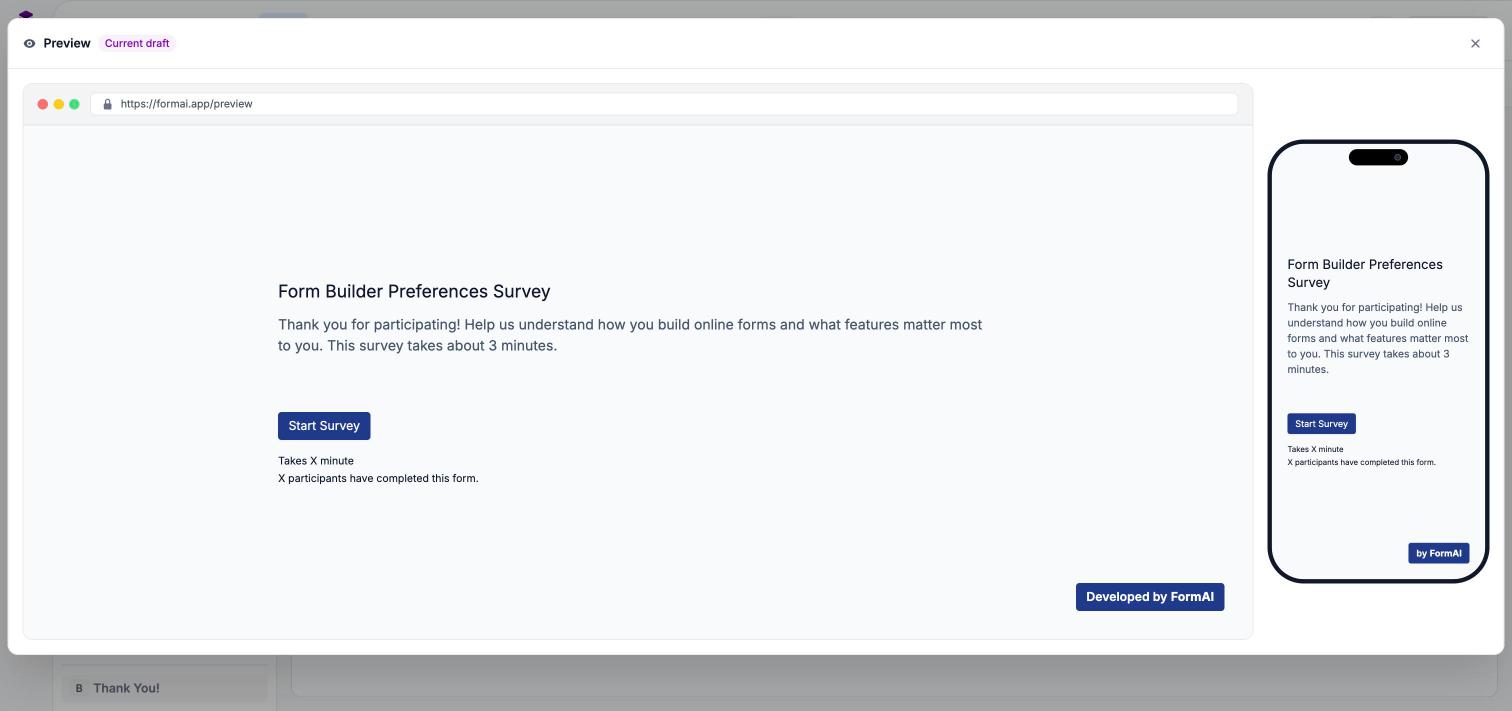
Preview — Current draft shows desktop and mobile side by side.
What to check
- The “Developed by FormAI” badge appears when FormAI Branding is turned on. Paid plans can turn it off in form settings.
- The progress bar and the Up and Down navigation arrows, if you have them enabled.
- Wording, answer choices, and which questions are required.
- Colors and fonts from your theme.
Preview is not publishing
Preview shows your current draft. Respondents see your changes only after you click Publish in the top bar. See Publish and share.Next steps
Publish and share
Publish the form and share a link.
Form settings
Adjust branding, the progress bar, and navigation.
Themes
Change how your form looks.
Edit with FormAI Agent
Ask the agent to make changes for you.