

Select questions in the outline, browse question types, and open FormAI Agent.
Anatomy of the editor
Publish is disabled when there is nothing new to publish.
Blocks on the canvas
Each block on the canvas, such as a question or a screen, has three buttons at the top right:- Field image adds media to the block.
- Field settings controls how the question behaves.
- Field theme controls how that single question looks.
Questions
Choose + in the toolbar to open the Add question menu. Hovering a type shows a live phone preview.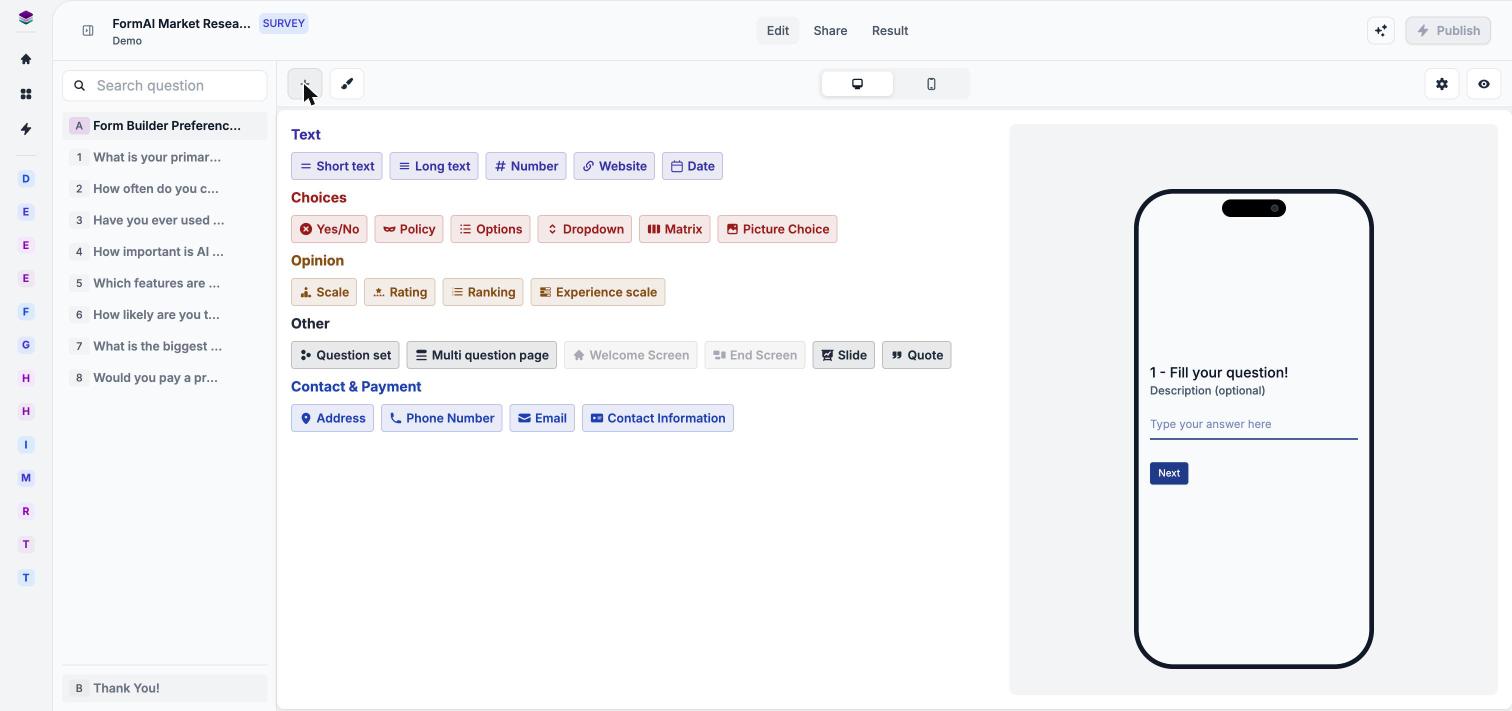
Question types are grouped by what they collect.
- Text: Short text, Long text, Number, Website, Date
- Choices: Yes/No, Policy, Options, Dropdown, Matrix, Picture Choice
- Opinion: Scale, Rating, Ranking, Experience scale
- Other: Question set, Multi question page, Welcome Screen, End Screen, Slide, Quote
- Contact & Payment: Address, Phone Number, Email, Contact Information
Four places to control a form
The editor separates behavior and appearance at two levels: one question, or the whole form.
See Question settings, Question styling, Themes, and Form settings.
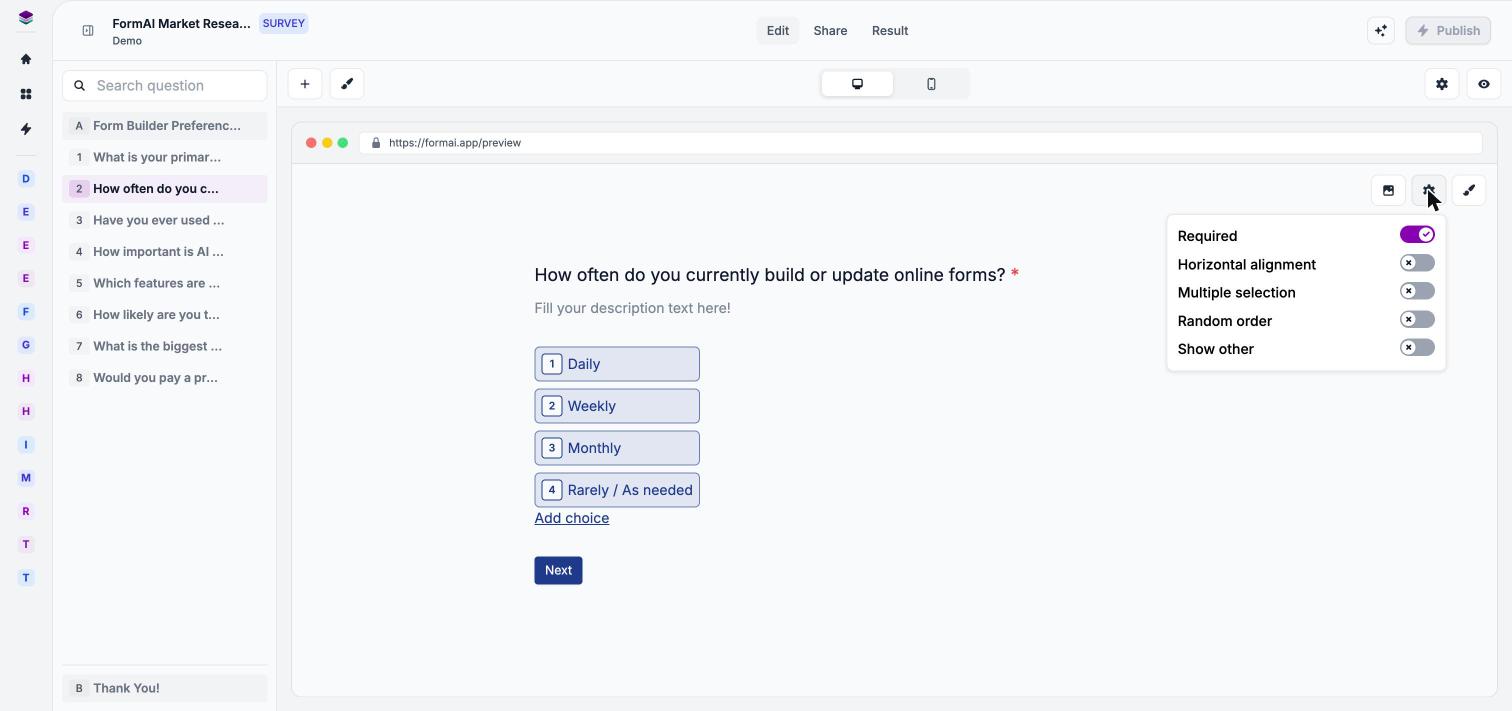
Field settings for an Options question.
Preview, then publish
The eye icon opens Preview — Current draft, which shows the desktop and mobile versions side by side. When the form is ready, select Publish, then use the Share tab to get a link. See Preview and Publish and share.Next steps
Question types
Choose the right type for each question.
Edit with FormAI Agent
Change the form by chatting with the agent.
AI in FormAI
Generation, the agent, themes, and credits.
Themes
Change how the whole form looks.