

The Result tab moves from Overview to Summary to Responses.
The three views
Overview
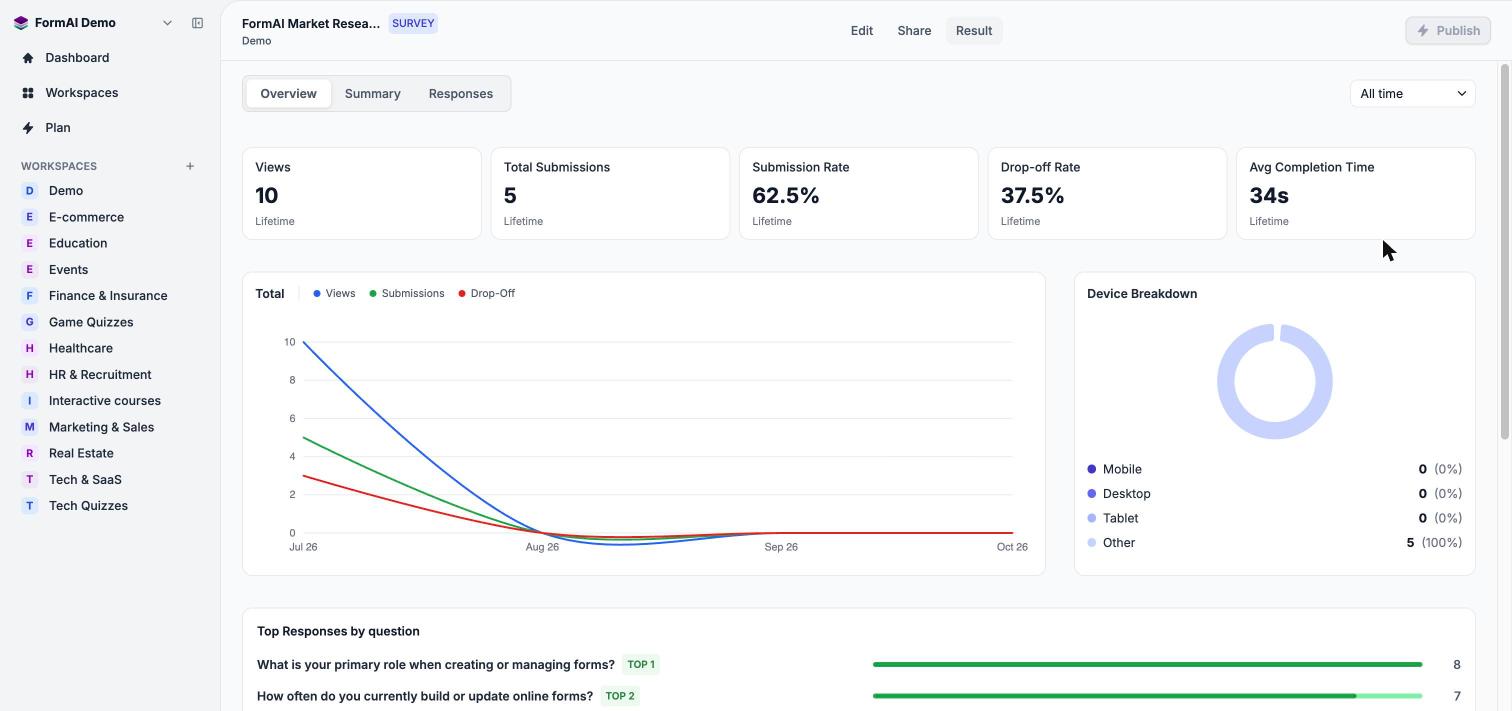
The Overview shows headline metrics, a chart, and a device breakdown.
Below the cards, the Total chart plots Views, Submissions, and Drop-Off over time, Device Breakdown splits traffic into Mobile, Desktop, Tablet, and Other, and Top Responses by question highlights the leading answers. Before any response arrives you see “No chart data available”.
Summary
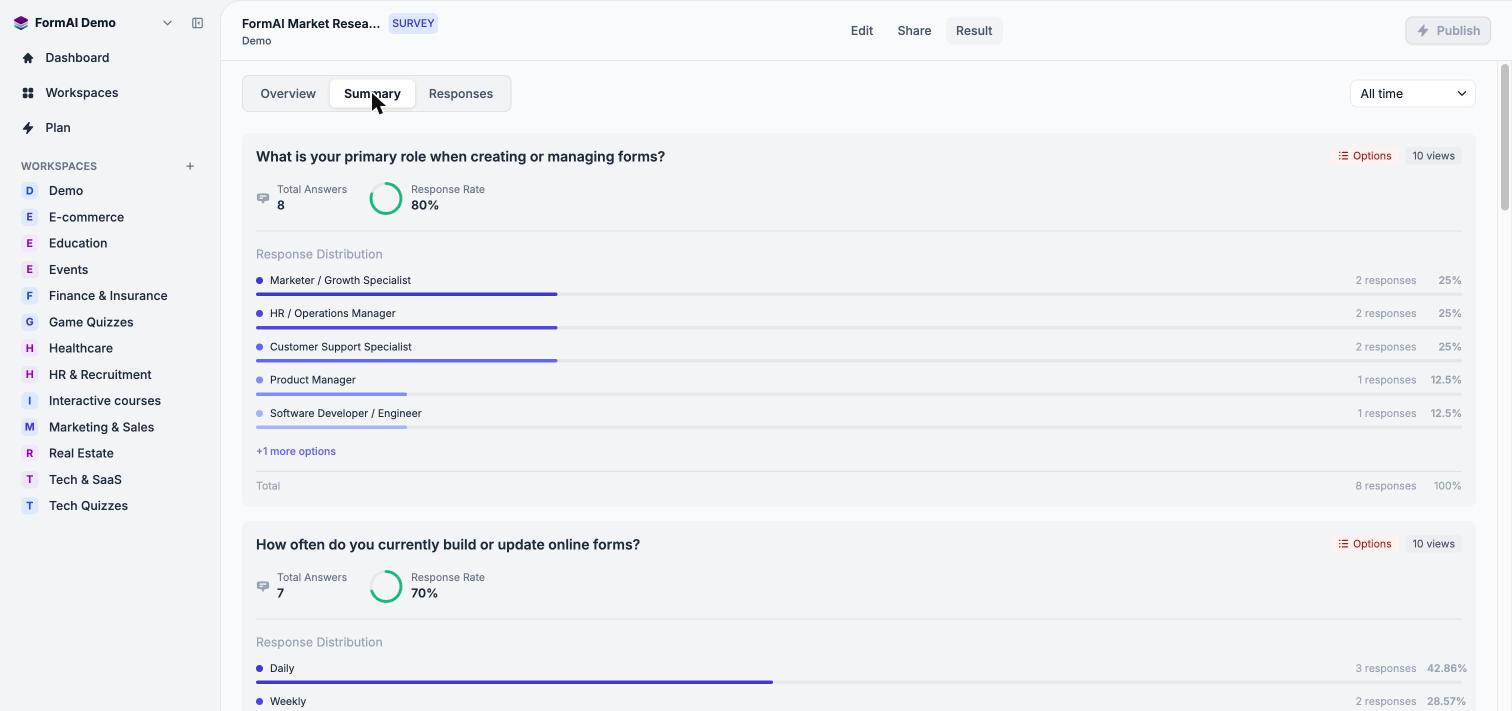
Each question gets its own card.
- Options questions show Response Distribution bars.
- 0 to 10 scales show an NPS-style breakdown: Average, NPS, Detractors, Passives, Promoters, and a Score Distribution chart.
- Matrix questions show a heatmap grid with a Transpose option and a Low to High response volume legend.
Responses
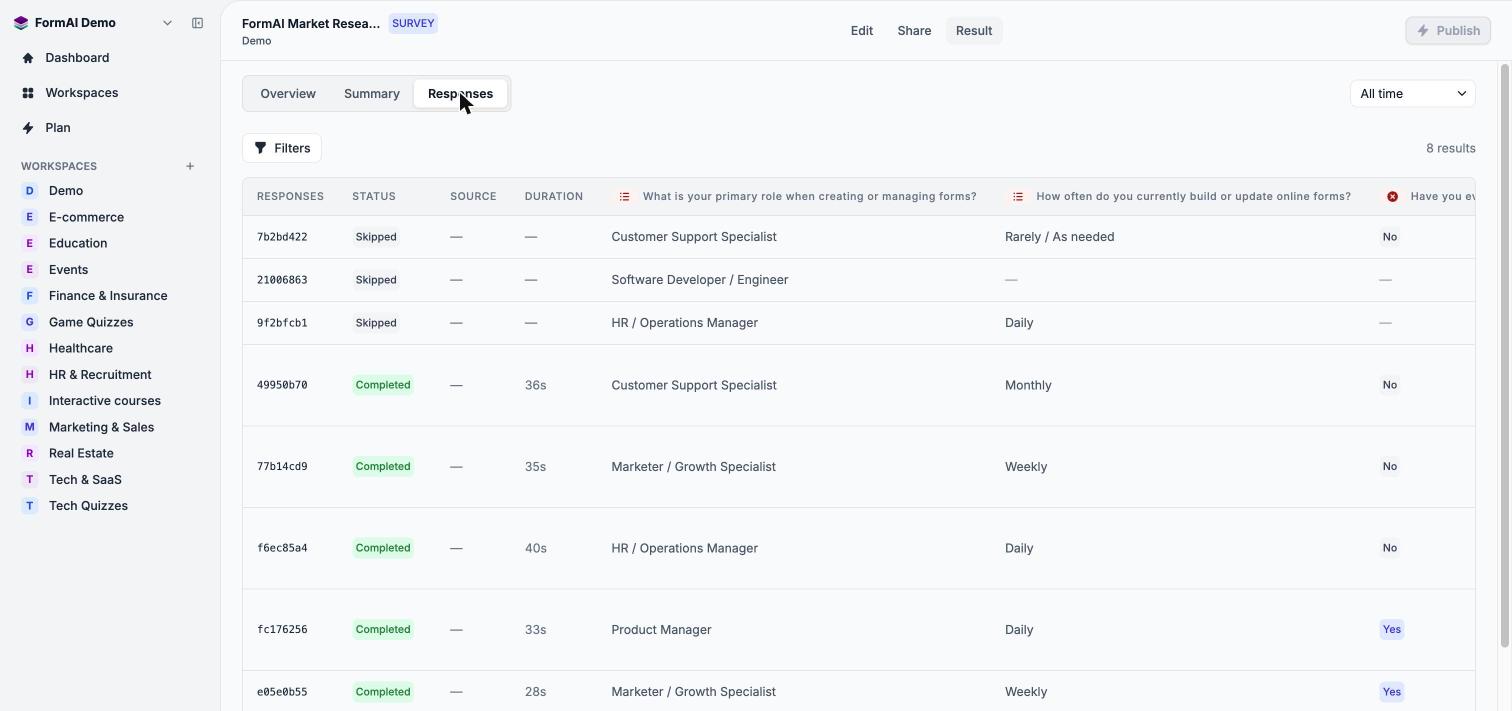
The Responses table has one row per response and one column per question.
Results across forms
The Dashboard rolls the same metrics up across your forms. You can filter it by form type and date range, switch workspaces with the selector, and open a form’s results from the Recent Forms table. The workspace header’s analytics button opens the Dashboard filtered to that workspace.On the Dashboard, the Analytics tab and the Live filter carry a clock badge, which means they are coming soon.
What is not available yet
Exporting responses is not available yet. The Responses page has no export button, so you cannot download results as a CSV, Excel, PDF, or JSON file today. FormAI also does not generate AI analysis reports across responses yet. The roadmap lists what is planned.Next steps
Results overview
Read the headline metrics and filter by date.
Question summaries
Interpret each visualization.
Individual responses
Filter the table and open a response.