> ## Documentation Index
> Fetch the complete documentation index at: https://docs.formai.app/llms.txt
> Use this file to discover all available pages before exploring further.
# Results overview
> Read the Result tab Overview and the Dashboard: what each KPI means, how date ranges work, and where to find charts and device data.
Every form has a **Result** tab that starts with an **Overview** of how it is performing. The **Dashboard** in the sidebar shows the same kinds of numbers across your forms.
## Open a form's results
Open the form from your workspace board or the Dashboard, then click **Result** at the top of the editor. You can also choose **Results** from a form card's **⋯** menu.
Switch between **Overview**, **Summary** and **Responses**. This page covers **Overview**.
Use the date range to narrow the numbers: **Today**, **Last week**, **Last month** or **All time**.
## KPI cards
| KPI | What it tells you |
| - | - |
| **Views** | How many times your form was viewed. |
| **Total Submissions** | How many responses were submitted. |
| **Submission Rate** | The share of views that end in a submission. |
| **Drop-off Rate** | The share of respondents who leave before finishing. |
| **Avg Completion Time** | The average time respondents take to complete the form. |
A high Drop-off Rate or a long Avg Completion Time can point to a form that is too long. Surveys finish best under 8 questions, because completion drops after that.
## Charts
* **Total:** charts Views, Submissions and Drop-Off for the selected date range.
* **Device Breakdown:** a donut chart splitting activity into Mobile, Desktop, Tablet and Other.
* **Top Responses by question:** a per-question look at the top responses.
Until a form has responses, the charts show "No chart data available" and the message "Data will appear once responses are collected".
## Dashboard vs. per-form results
The two views use the same KPIs but answer different questions.
| | Dashboard | Form results |
| - | - | - |
| **Where** | **Dashboard** in the left sidebar | **Result** tab inside a form |
| **Scope** | Across your forms, with a workspace selector at the top right | One form |
| **Filters** | **Survey**, **Quiz** and **Live** buttons, plus the date range | Date range |
| **Extras** | **Recent Forms** table with copy link, results and edit actions | **Summary** and **Responses** tabs |
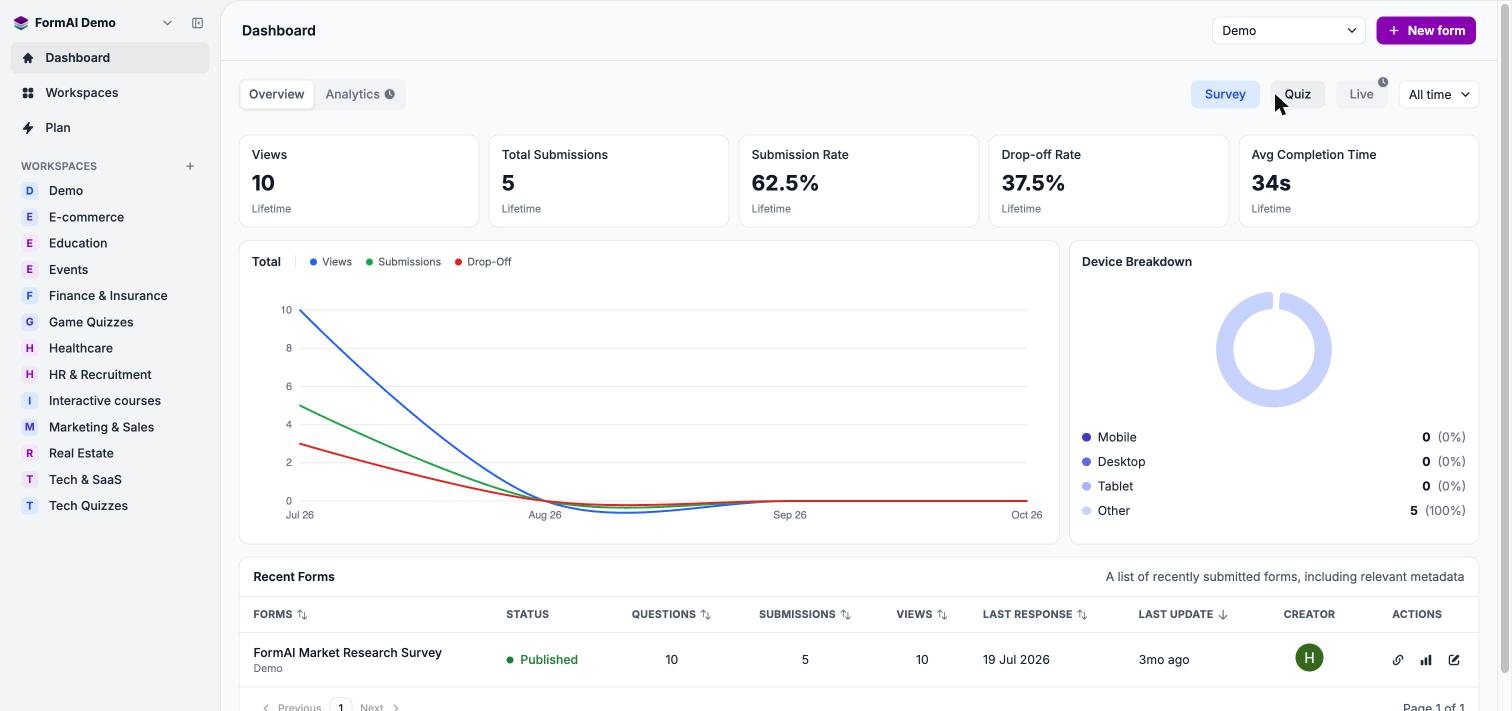 On the Dashboard, each KPI card also shows a comparison label such as **Lifetime** or **From last month**. The **Recent Forms** table lists each form's status, questions, submissions, views, last response, last update and creator.
The **Analytics** tab and the **Live** filter on the Dashboard show a clock badge. They are marked as coming soon.
## Next steps
See how respondents answered each question.
Read every response in a table.
How FormAI turns answers into analysis.
Open the Dashboard filtered to one workspace.
This documentation is built and hosted on [Mintlify](https://mintlify.com), a developer documentation platform.
On the Dashboard, each KPI card also shows a comparison label such as **Lifetime** or **From last month**. The **Recent Forms** table lists each form's status, questions, submissions, views, last response, last update and creator.
The **Analytics** tab and the **Live** filter on the Dashboard show a clock badge. They are marked as coming soon.
## Next steps
See how respondents answered each question.
Read every response in a table.
How FormAI turns answers into analysis.
Open the Dashboard filtered to one workspace.
This documentation is built and hosted on [Mintlify](https://mintlify.com), a developer documentation platform.