> ## Documentation Index
> Fetch the complete documentation index at: https://docs.formai.app/llms.txt
> Use this file to discover all available pages before exploring further.
# Individual responses
> Browse every response in a table, filter by status, and open a response to see all of its answers.
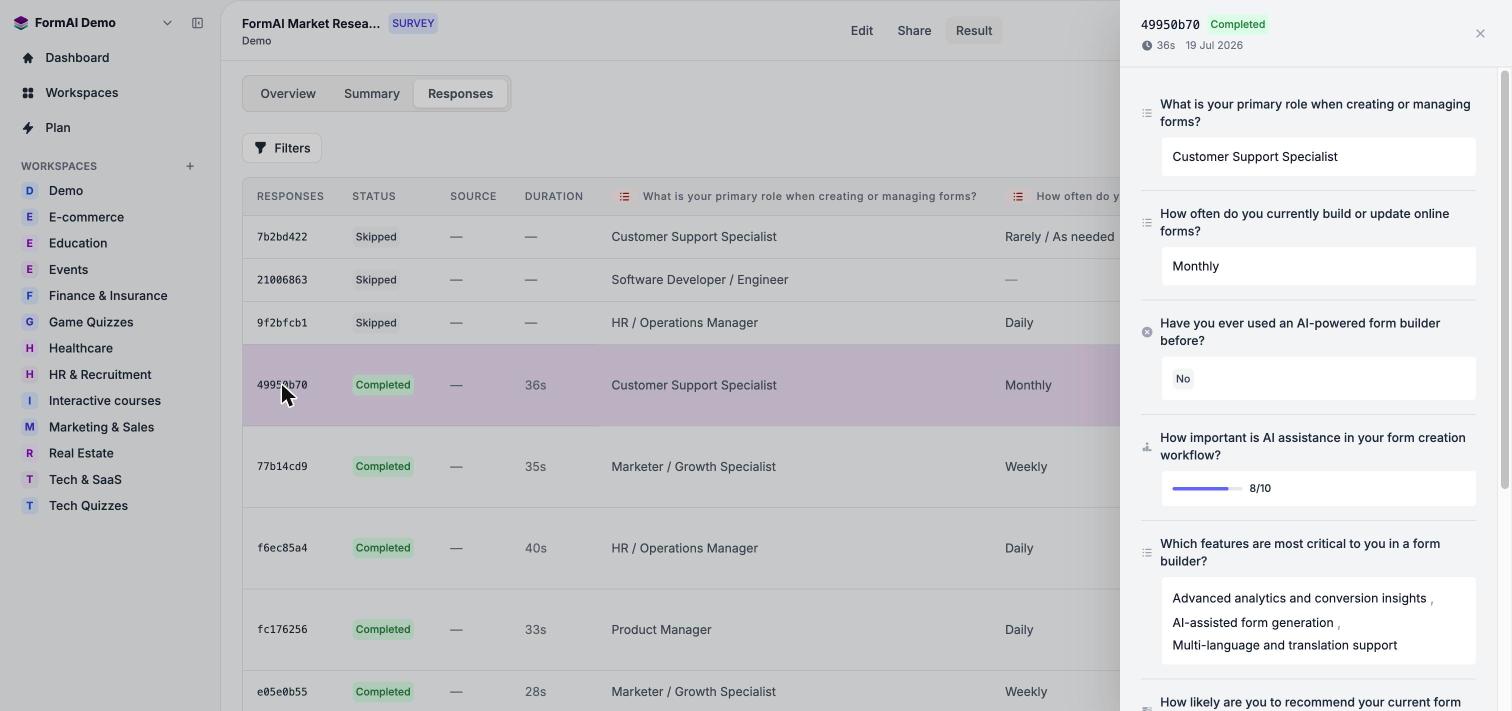
The **Responses** tab lists each response as a row, so you can read exactly what one person answered.
## The responses table
Open **Result** in the editor, then choose **Responses**. The table includes:
| Column | What it shows |
| - | - |
| **Responses** | A short ID for each response. |
| **Status** | Whether the response is **Completed** or **Skipped**. |
| **Source** | Where the response came from. |
| **Duration** | How long the response took. |
| One column per question | The answer to that question. |
A result count above the table tells you how many responses match your current filters.
## Filter by status
Click **Filters** and set **Status** to one of:
* **All statuses**
* **Completed**: responses that were completed.
* **Skipped**: responses that were not completed.
You can also change the date range at the top of the Result tab to focus on a period such as **Last week**.
## Open a response
Click any row to open a side panel with every answer in that response, plus its status, duration and date.
 Exporting responses is not available yet. You can read responses in the table and the side panel, and see aggregated charts on the [Summary tab](/user-guide/results/question-summaries). Export is on the [roadmap](/user-guide/roadmap).
## Next steps
See answers aggregated per question.
Track views, submissions and drop-off.
See what is planned, including export.
Quick answers to common questions.
This documentation is built and hosted on [Mintlify](https://mintlify.com), a developer documentation platform.
Exporting responses is not available yet. You can read responses in the table and the side panel, and see aggregated charts on the [Summary tab](/user-guide/results/question-summaries). Export is on the [roadmap](/user-guide/roadmap).
## Next steps
See answers aggregated per question.
Track views, submissions and drop-off.
See what is planned, including export.
Quick answers to common questions.
This documentation is built and hosted on [Mintlify](https://mintlify.com), a developer documentation platform.