> ## Documentation Index
> Fetch the complete documentation index at: https://docs.formai.app/llms.txt
> Use this file to discover all available pages before exploring further.
# Host a Live session
> Share the join link, open the presenter view, welcome participants in the lobby, start the session, and replay past sessions.
A Live session is presenter-led. You run the questions from the presenter view while participants answer on their own phones. Everything starts from the **Share** tab of a Live form.
## How participants join
Participants join from a phone browser. They do not need an account or an app.
* **Join link:** `https://ui.formai.app/live/join`. Anyone with this link can join the lobby.
* **Live PIN and QR code:** the PIN is generated when you start the session, and the PIN and QR code appear on the welcome screen at that moment. Participants join with the PIN or by scanning the QR code.
QR codes exist only for Live sessions. Surveys and quizzes are shared with a link, an embed, or an email button.
## Run a session
In your Live form, click **Share**. The page is titled "Invite people to your live session".
Click **Open presenter**. The presenter view opens in a new browser tab.
In the **SHARE LINK** section, click **Copy** and send the join link to your audience. They land in the lobby until you start.
The presenter view shows the participant count, the status "Ready to start" and the message "Awaiting Participants …".
Click **Start Now**. The Live PIN and QR code appear on the welcome screen.
Advance through the questions and reveal answers as you go. Scored questions feed a leaderboard.
When you are done, go back to the **Share** tab and click **End session**.
## The presenter view
The presenter view is the screen you share with the room. It shows:
* The Live PIN and QR code at the top
* The participant count and a "Ready to start" status
* The form title and **Start Now**
* A toolbar along the bottom with lock, music, settings and navigation controls
## Preview the lobby
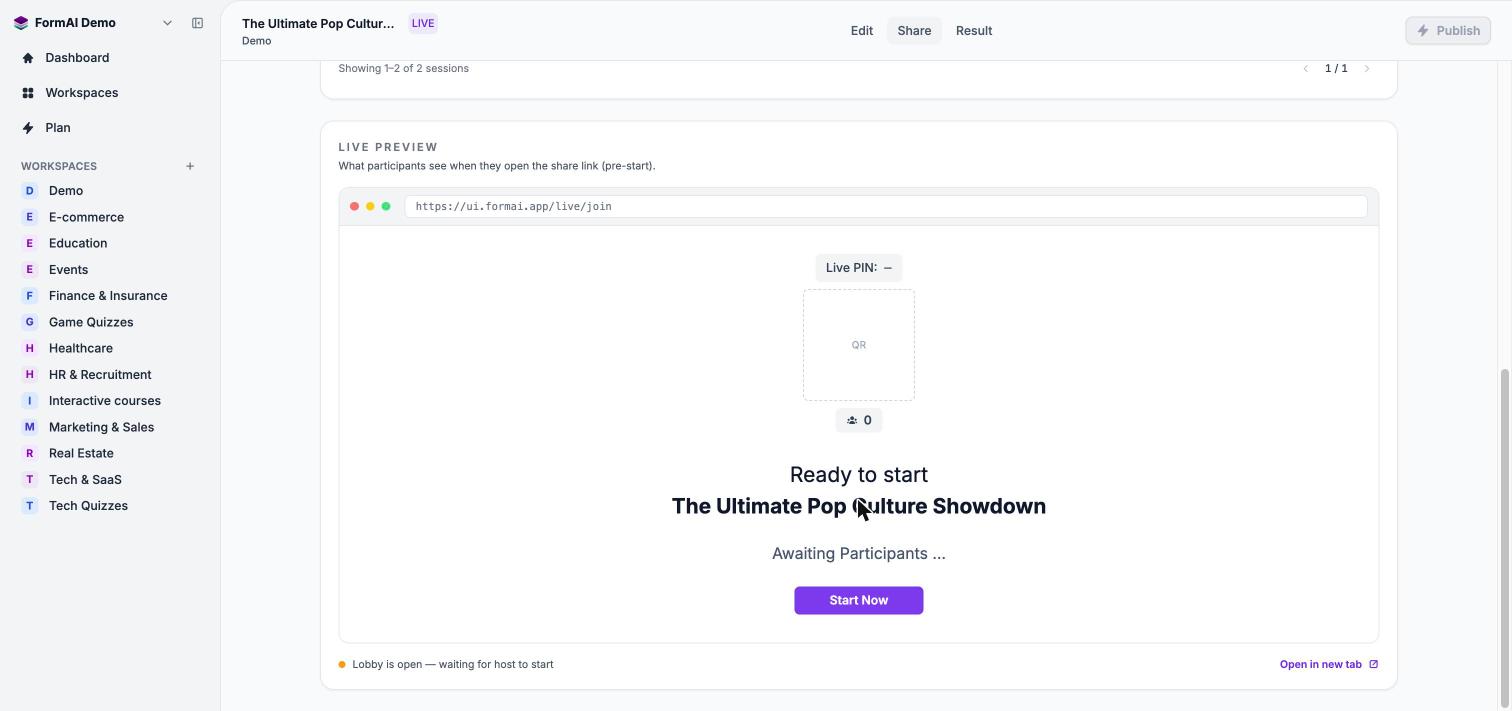
The **LIVE PREVIEW** section of the Share tab shows what participants see when they open the share link before the session starts. It includes the Live PIN, a QR placeholder, the participant count, the form title and the message "Lobby is open — waiting for host to start". Click **Open in new tab** to see it full size.
 ## Past sessions
Every time a Live form has been launched, it appears under **PAST SESSIONS** with its date, time and number of participants, along with key analytics. Click **Open session** on a row to open the session replay.
The **LOBBY**, **QUESTIONS** and **SESSIONS** counters at the top of the Share tab give you a quick summary of the form.
## Next steps
Choose from the Live, Words, Opinion and Other groups.
Set points and correct answers for scored questions.
Compare Survey, Quiz and Live forms.
Check how your form looks on desktop and mobile.
This documentation is built and hosted on [Mintlify](https://mintlify.com), a developer documentation platform.
## Past sessions
Every time a Live form has been launched, it appears under **PAST SESSIONS** with its date, time and number of participants, along with key analytics. Click **Open session** on a row to open the session replay.
The **LOBBY**, **QUESTIONS** and **SESSIONS** counters at the top of the Share tab give you a quick summary of the form.
## Next steps
Choose from the Live, Words, Opinion and Other groups.
Set points and correct answers for scored questions.
Compare Survey, Quiz and Live forms.
Check how your form looks on desktop and mobile.
This documentation is built and hosted on [Mintlify](https://mintlify.com), a developer documentation platform.