> ## Documentation Index
> Fetch the complete documentation index at: https://docs.formai.app/llms.txt
> Use this file to discover all available pages before exploring further.
# Themes
> Use the theme manager to browse themes and a 17-preset gallery, create and edit your own, and let AI generate a matching theme.
A theme sets the look of your whole form: colors, font, size, and alignment. Manage themes from the theme manager in the editor.
## Open the theme manager
In the editor toolbar, click the brush icon. The theme manager has two tabs:
* **themes** shows the themes available to your form. The one marked **Active** is applied to your form.
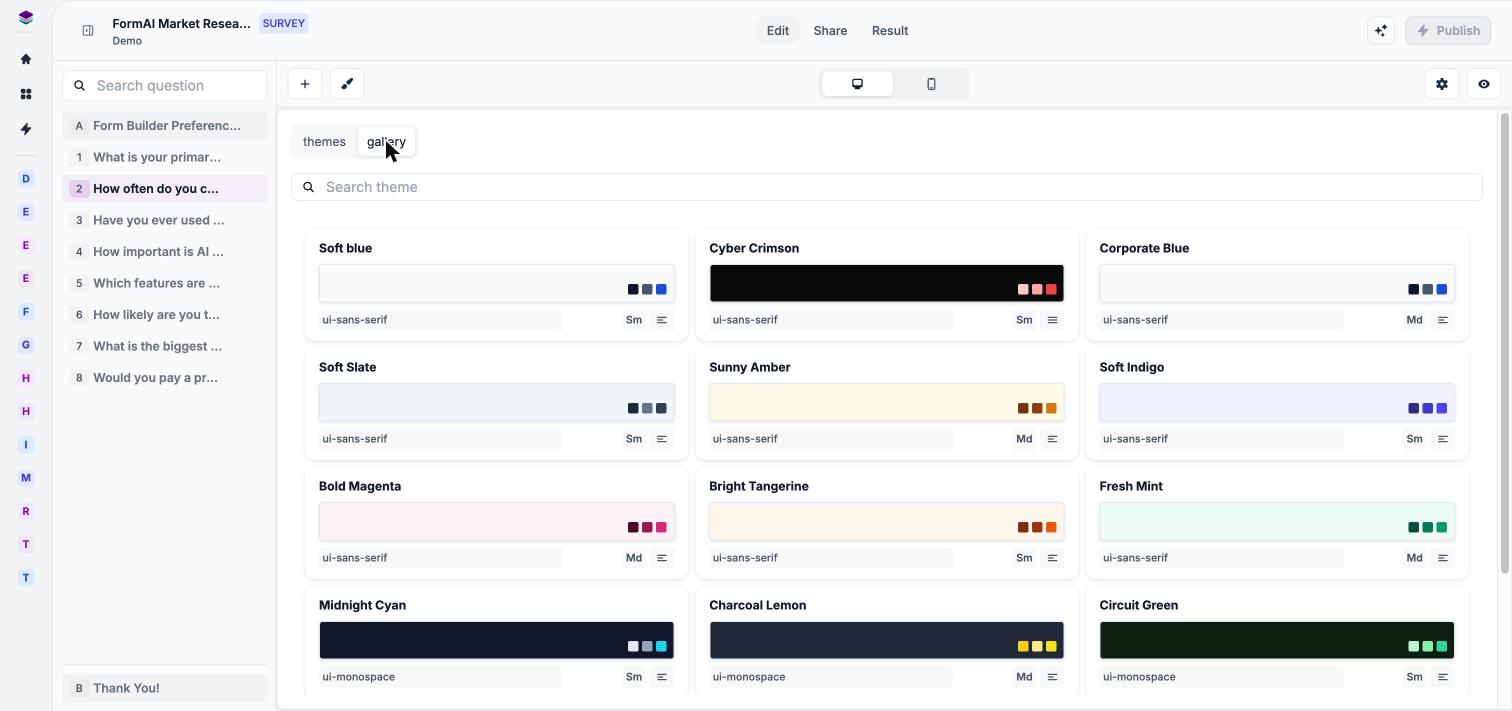
* **gallery** shows ready-made presets.
To apply a theme, click its card on either tab. The change is immediate, and the card you clicked gets the **Active** badge.
Use **Search theme** to find a theme by name. Each theme card shows its name, color swatches, font, size, and alignment.
## Create a theme
On the **themes** tab, click **+ New theme** or the **Create new theme** tile.
Choose the colors, font, size, and alignment you want.
Look at your form on the canvas, or open [Preview](/user-guide/editor/preview) to see it on desktop and mobile.
## Duplicate or edit a theme
On any theme card, use the **duplicate** icon to make a copy and the **edit** icon to change it. Duplicating is a safe way to try variations without changing the original.
## Gallery presets
The **gallery** tab has 17 presets:
| Preset | Preset | Preset |
| - | - | - |
| Soft blue | Cyber Crimson | Corporate Blue |
| Soft Slate | Sunny Amber | Soft Indigo |
| Bold Magenta | Bright Tangerine | Fresh Mint |
| Midnight Cyan | Charcoal Lemon | Circuit Green |
| Royal Cobalt | Lab Teal | Vintage Parchment |
| Neon Orchid | Sleek Corporate Tech | |
 ## AI-generated themes
You do not have to design a theme yourself:
* When you [generate a form with AI](/user-guide/create/generate-with-ai), FormAI also drafts a theme that matches your topic.
* You can ask [FormAI Agent](/user-guide/editor/edit-with-ai-agent) to change the theme, for example "Switch to a warmer color palette".
AI theme generation uses AI credits from your organization's monthly allowance. Creating and editing themes by hand does not. See [Plans and AI credits](/user-guide/account/plans-and-ai-credits).
## Theme or question styling?
A theme applies to the whole form. To style a single question differently, use its **Field theme** panel. See [Question styling](/user-guide/design/question-styling).
## Next steps
Style one question without changing the whole theme.
Control branding and what respondents see.
See your theme on desktop and mobile.
Ask the agent to change your theme.
This documentation is built and hosted on [Mintlify](https://mintlify.com), a developer documentation platform.
## AI-generated themes
You do not have to design a theme yourself:
* When you [generate a form with AI](/user-guide/create/generate-with-ai), FormAI also drafts a theme that matches your topic.
* You can ask [FormAI Agent](/user-guide/editor/edit-with-ai-agent) to change the theme, for example "Switch to a warmer color palette".
AI theme generation uses AI credits from your organization's monthly allowance. Creating and editing themes by hand does not. See [Plans and AI credits](/user-guide/account/plans-and-ai-credits).
## Theme or question styling?
A theme applies to the whole form. To style a single question differently, use its **Field theme** panel. See [Question styling](/user-guide/design/question-styling).
## Next steps
Style one question without changing the whole theme.
Control branding and what respondents see.
See your theme on desktop and mobile.
Ask the agent to change your theme.
This documentation is built and hosted on [Mintlify](https://mintlify.com), a developer documentation platform.