> ## Documentation Index
> Fetch the complete documentation index at: https://docs.formai.app/llms.txt
> Use this file to discover all available pages before exploring further.
# Key features
> A tour of what FormAI does today: AI form creation, the visual editor and themes, sharing by link, embed, email button or live session, per-question results, and team workspaces.
This page is a tour of what you can do in FormAI today. Each section links to the how-to pages in the [User Guide](/user-guide/introduction).
## Create
Start from a description, or start from a blank form. Either way you choose a form type (Survey, Quiz, or Live) and the workspace the form belongs to.
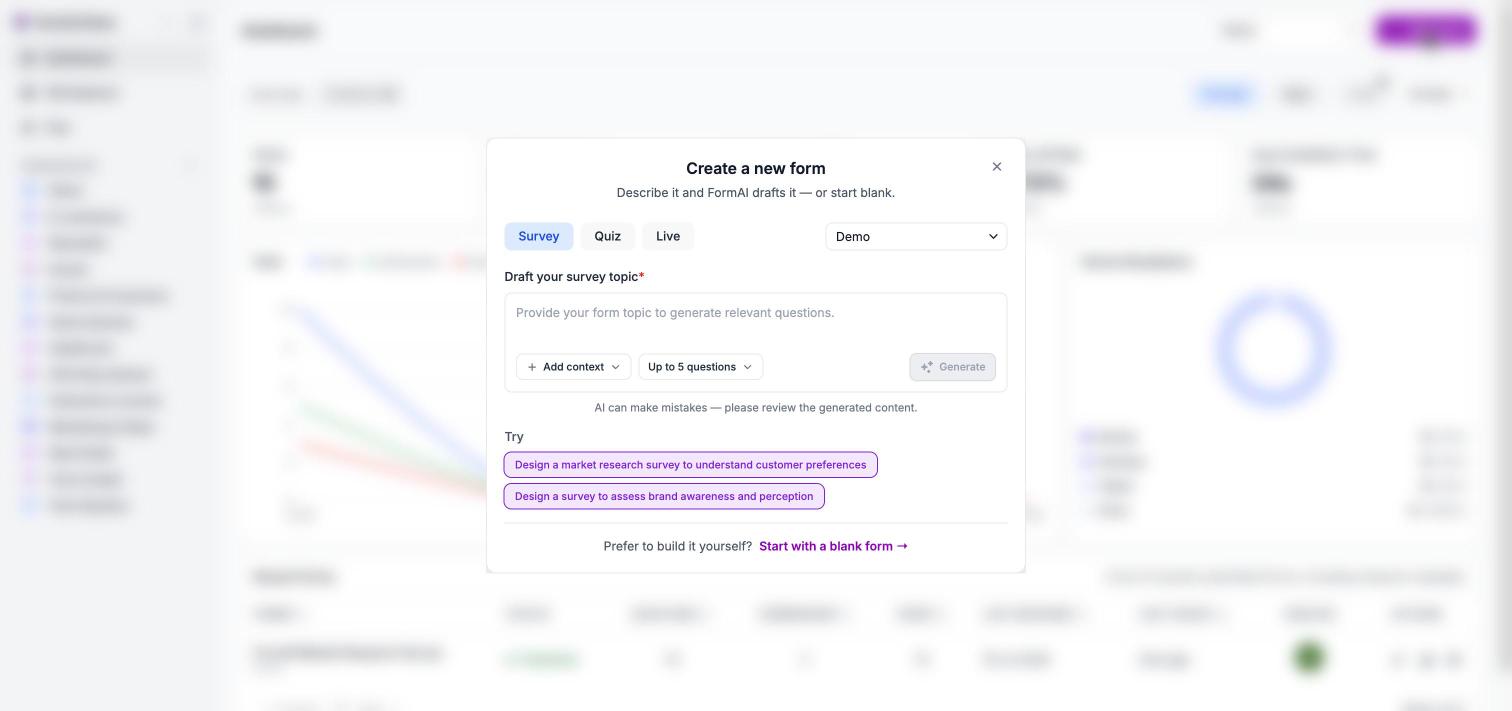 Describe the form and get questions, welcome and end screens, and a matching theme.
Ground the draft in a PDF document or a web page.
Build the form yourself, one question at a time.
## Build and design
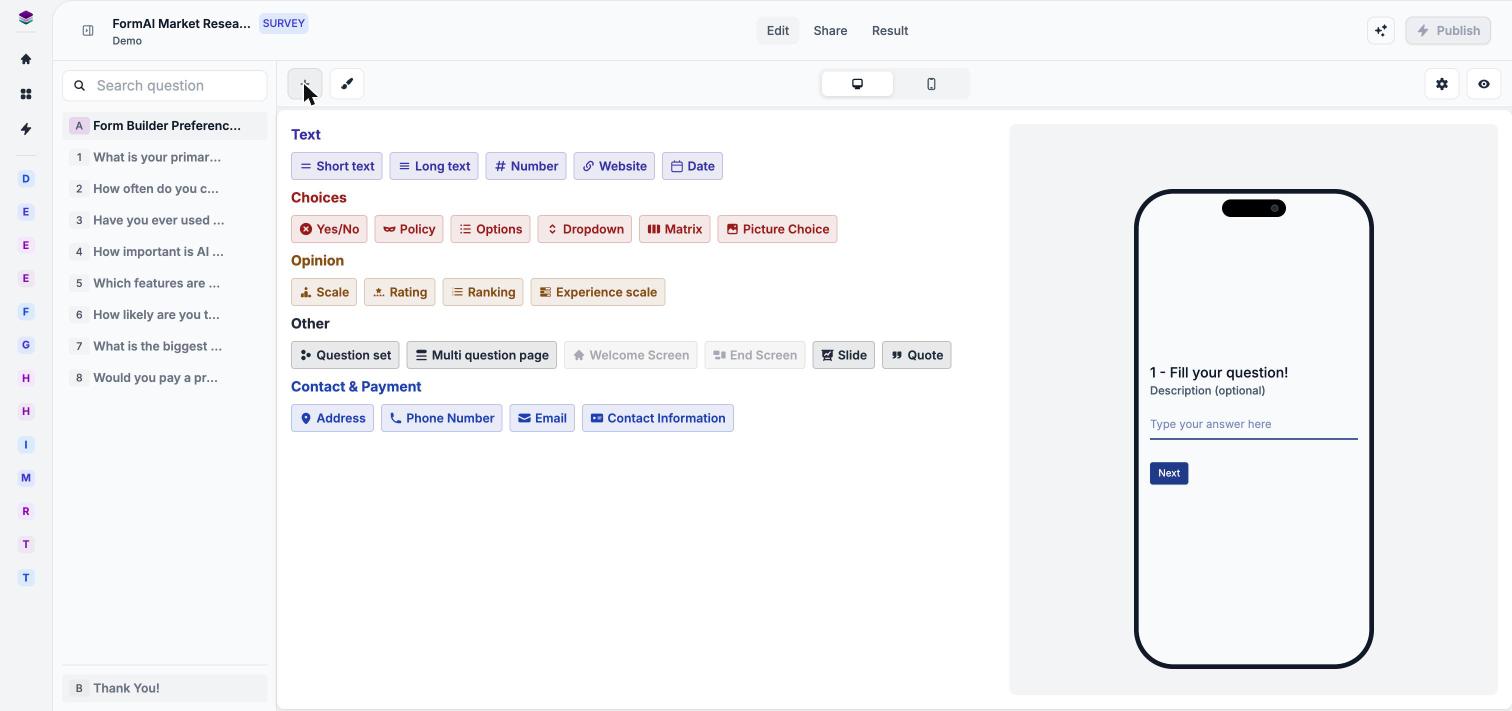
The editor is a visual canvas. You change text in place, reorder and add questions, and see a desktop or mobile preview as you work. The form saves automatically.
Describe the form and get questions, welcome and end screens, and a matching theme.
Ground the draft in a PDF document or a web page.
Build the form yourself, one question at a time.
## Build and design
The editor is a visual canvas. You change text in place, reorder and add questions, and see a desktop or mobile preview as you work. The form saves automatically.
 ### Questions and screens
More than twenty types for Survey and Quiz forms, from short text and rating to matrix and picture choice.
Make a question required, randomize choices, allow multiple selection, and more.
Introduce the form and close it with a thank-you screen.
Chat to add, change, or reword questions. Preview each suggestion, then apply it.
### Design and form behavior
Use the AI-generated theme, pick one of 17 gallery presets, or build your own.
Override fonts, colors, size, and alignment for a single question.
Choose the form language, progress bar, navigation, and rewrite every respondent-facing label.
Check the current draft on desktop and mobile before you publish.
### Quizzes and live sessions
Mark correct answers, set points and penalties, add explanations, and choose when answers are revealed.
True/False, word cloud, brainstorm, drag and drop, Q & A, and more for presenter-led sessions.
## Share
Select **Publish** in the top bar, then open the **Share** tab. You can keep editing a form after you publish it.
Copy a share link and post it on social channels or send it directly.
Paste an iframe snippet into your page.
Copy an HTML call-to-action button for your email campaigns.
Open the lobby, start the session, and run it from the presenter view.
QR codes are part of Live sessions only. Survey and Quiz forms are shared with a link, an embed, or an email button.
## Results
Every form has a **Result** tab with three views: **Overview**, **Summary**, and **Responses**. Results fill in as people submit, and you can filter them by date range.
### Questions and screens
More than twenty types for Survey and Quiz forms, from short text and rating to matrix and picture choice.
Make a question required, randomize choices, allow multiple selection, and more.
Introduce the form and close it with a thank-you screen.
Chat to add, change, or reword questions. Preview each suggestion, then apply it.
### Design and form behavior
Use the AI-generated theme, pick one of 17 gallery presets, or build your own.
Override fonts, colors, size, and alignment for a single question.
Choose the form language, progress bar, navigation, and rewrite every respondent-facing label.
Check the current draft on desktop and mobile before you publish.
### Quizzes and live sessions
Mark correct answers, set points and penalties, add explanations, and choose when answers are revealed.
True/False, word cloud, brainstorm, drag and drop, Q & A, and more for presenter-led sessions.
## Share
Select **Publish** in the top bar, then open the **Share** tab. You can keep editing a form after you publish it.
Copy a share link and post it on social channels or send it directly.
Paste an iframe snippet into your page.
Copy an HTML call-to-action button for your email campaigns.
Open the lobby, start the session, and run it from the presenter view.
QR codes are part of Live sessions only. Survey and Quiz forms are shared with a link, an embed, or an email button.
## Results
Every form has a **Result** tab with three views: **Overview**, **Summary**, and **Responses**. Results fill in as people submit, and you can filter them by date range.
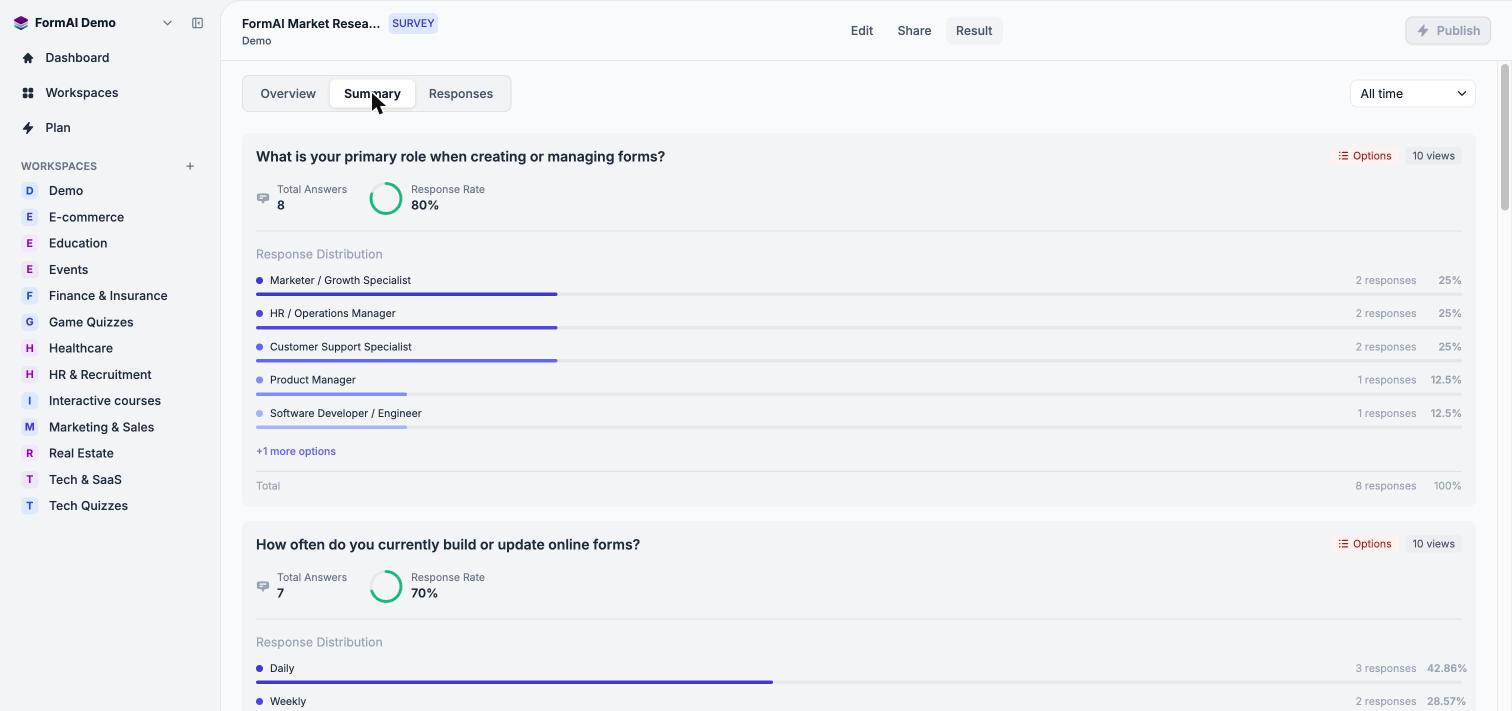 Views, submissions, submission rate, drop-off rate, and completion time.
Distributions, NPS-style breakdowns, and matrix heatmaps per question.
Filter the table and open any response to see every answer.
## Team
Workspaces keep forms and people organized. Invite colleagues by email and assign each person a role.
Create workspaces and track forms on a board by status.
Send email invites with the Admin, Manager, Member, or Viewer role.
Compare plans and see how the monthly AI credit allowance works.
## Not available yet
Some features people often ask about are planned but not available today, including conditional logic, exporting responses, and integrations with other tools. The [roadmap](/user-guide/roadmap) lists what is coming, without dates.
## Next steps
Create and share your first form in about 5 minutes.
Understand workspaces, form types, the editor, AI, and results.
This documentation is built and hosted on [Mintlify](https://mintlify.com), a developer documentation platform.
Views, submissions, submission rate, drop-off rate, and completion time.
Distributions, NPS-style breakdowns, and matrix heatmaps per question.
Filter the table and open any response to see every answer.
## Team
Workspaces keep forms and people organized. Invite colleagues by email and assign each person a role.
Create workspaces and track forms on a board by status.
Send email invites with the Admin, Manager, Member, or Viewer role.
Compare plans and see how the monthly AI credit allowance works.
## Not available yet
Some features people often ask about are planned but not available today, including conditional logic, exporting responses, and integrations with other tools. The [roadmap](/user-guide/roadmap) lists what is coming, without dates.
## Next steps
Create and share your first form in about 5 minutes.
Understand workspaces, form types, the editor, AI, and results.
This documentation is built and hosted on [Mintlify](https://mintlify.com), a developer documentation platform.