> ## Documentation Index
> Fetch the complete documentation index at: https://docs.formai.app/llms.txt
> Use this file to discover all available pages before exploring further.
# The editor
> A map of the FormAI editor: top bar, outline, toolbar, canvas, and the four places where you control how a form behaves and looks.
The editor is where every form takes shape, whether FormAI drafted it or you started blank. You edit text directly on a canvas that looks like the finished form, and the form saves automatically. A "Saved" indicator with the date and time appears above the preview.
## Anatomy of the editor
| Area | What it does |
| - | - |
| **Top bar** | Shows the form title, a type badge (SURVEY, QUIZ, or LIVE), and the workspace name. It holds the **Edit**, **Share**, and **Result** tabs, the **Assistant** button that opens FormAI Agent, and **Publish**. |
| **Left panel** | A **Search question** box and the form outline. **A** is the welcome screen, **1** to **n** are the questions, and **B** is the end screen. Hover a question to see its full text and its duplicate and delete icons. |
| **Toolbar** | **+** adds a question, the brush opens the theme manager, the **Desktop** and **Mobile** toggle switches the preview size, the gear opens form settings, and the eye opens the preview. |
| **Canvas** | A browser-frame preview of the form. You edit titles, descriptions, and choices in place, and select **Add choice** to add an option. |
**Publish** is disabled when there is nothing new to publish.
## Blocks on the canvas
Each block on the canvas, such as a question or a screen, has three buttons at the top right:
* **Field image** adds media to the block.
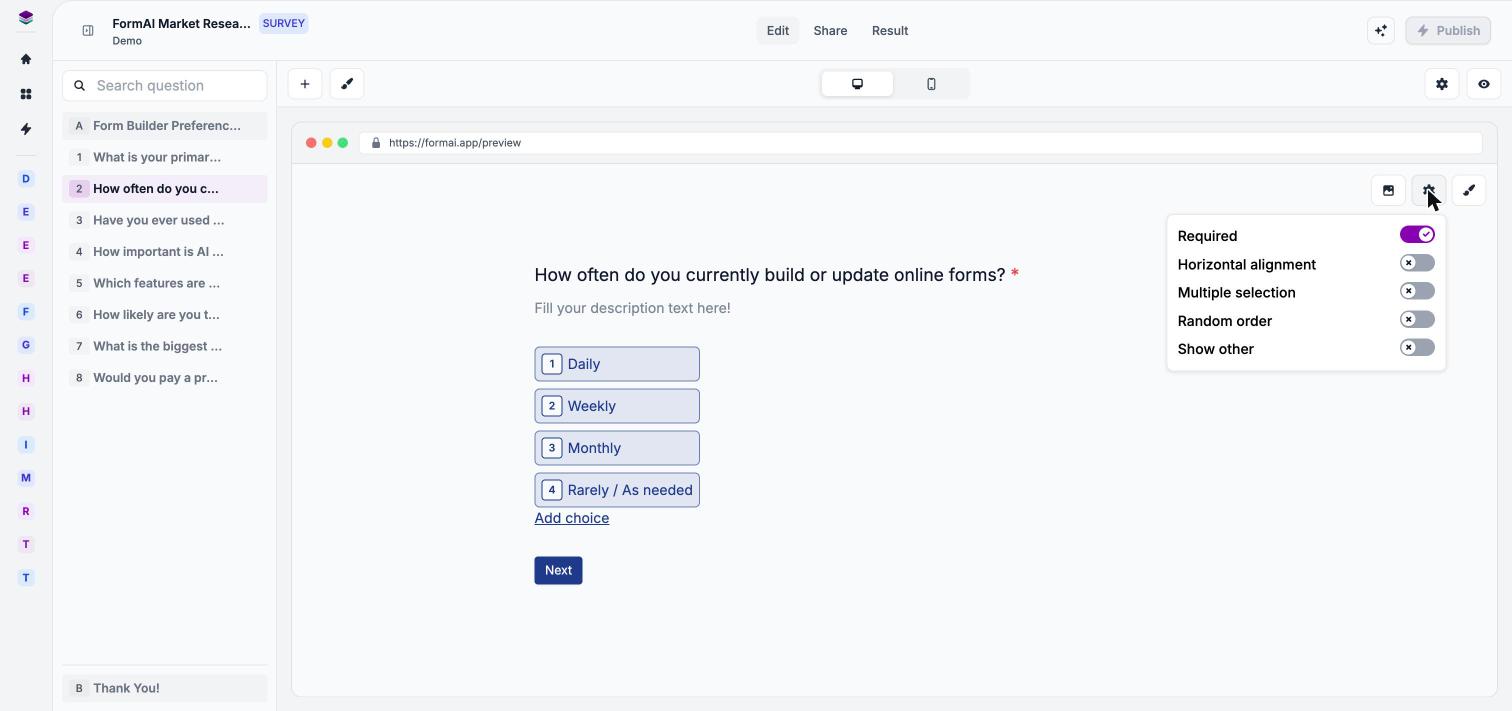
* **Field settings** controls how the question behaves.
* **Field theme** controls how that single question looks.
A form also has a **welcome screen** at the start and an **end screen** at the finish. The welcome screen shows the title, description, a start button, an estimated time, and a count of people who have completed the form. See [Welcome and end screens](/user-guide/editor/welcome-and-end-screens).
## Questions
Choose **+** in the toolbar to open the **Add question** menu. Hovering a type shows a live phone preview.
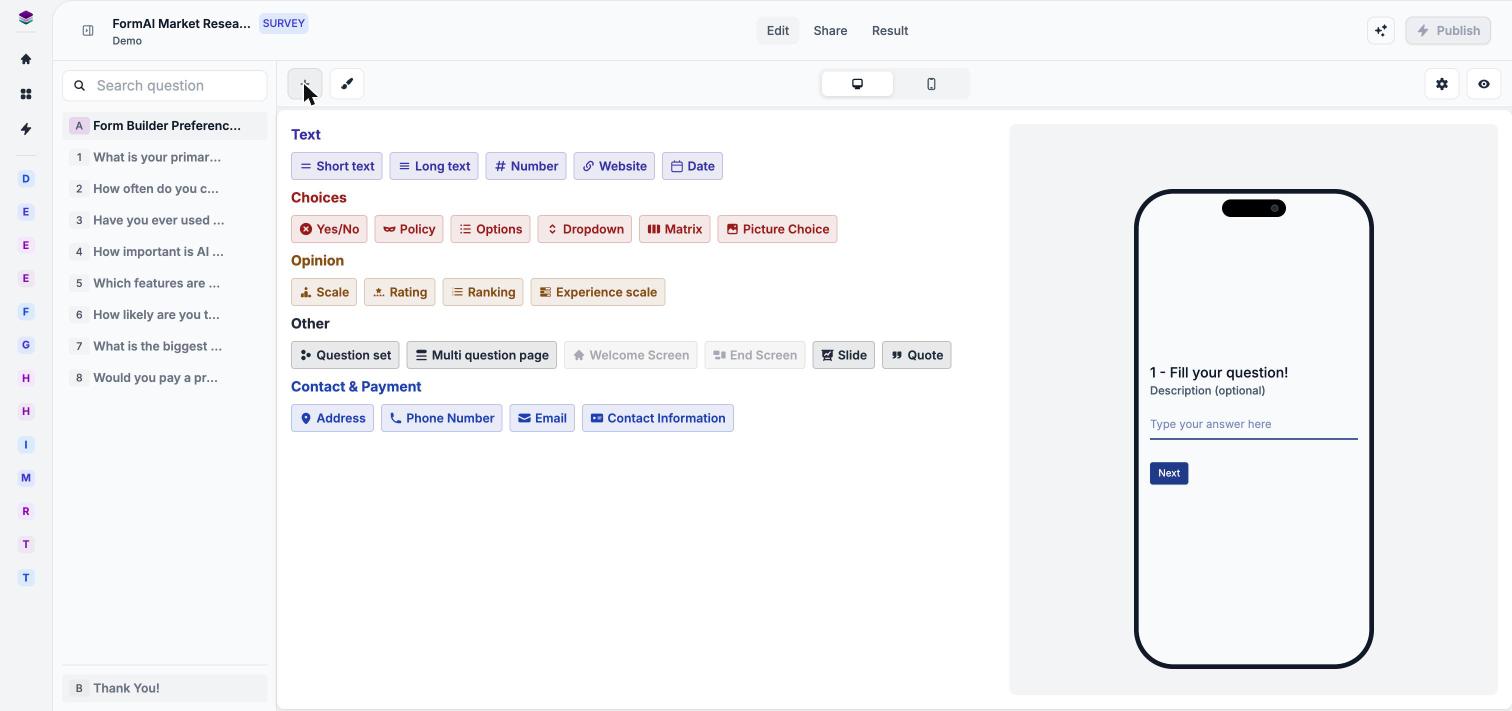 Survey and Quiz forms offer more than twenty types in these groups:
* **Text:** Short text, Long text, Number, Website, Date
* **Choices:** Yes/No, Policy, Options, Dropdown, Matrix, Picture Choice
* **Opinion:** Scale, Rating, Ranking, Experience scale
* **Other:** Question set, Multi question page, Welcome Screen, End Screen, Slide, Quote
* **Contact & Payment:** Address, Phone Number, Email, Contact Information
Live forms have their own menu. See [Live question types](/user-guide/live/live-question-types) and [Question types](/user-guide/editor/question-types).
## Four places to control a form
The editor separates behavior and appearance at two levels: one question, or the whole form.
| Control | Scope | What it changes |
| - | - | - |
| **Field settings** | One question | Behavior such as **Required**, **Multiple selection**, **Random order**, or, in quizzes, **Answer score**. Options vary by question type. |
| **Field theme** | One question | Look of that question: preset, font, size, corner radius, alignment, and colors. |
| **Theme manager** | The whole form | The active theme, which you pick from your themes or the gallery, or build as a new theme. |
| **Form settings** | The whole form | Language, branding badge, progress bar, navigation, question numbers, and every respondent-facing label. |
See [Question settings](/user-guide/editor/question-settings), [Question styling](/user-guide/design/question-styling), [Themes](/user-guide/design/themes), and [Form settings](/user-guide/settings/form-settings).
Survey and Quiz forms offer more than twenty types in these groups:
* **Text:** Short text, Long text, Number, Website, Date
* **Choices:** Yes/No, Policy, Options, Dropdown, Matrix, Picture Choice
* **Opinion:** Scale, Rating, Ranking, Experience scale
* **Other:** Question set, Multi question page, Welcome Screen, End Screen, Slide, Quote
* **Contact & Payment:** Address, Phone Number, Email, Contact Information
Live forms have their own menu. See [Live question types](/user-guide/live/live-question-types) and [Question types](/user-guide/editor/question-types).
## Four places to control a form
The editor separates behavior and appearance at two levels: one question, or the whole form.
| Control | Scope | What it changes |
| - | - | - |
| **Field settings** | One question | Behavior such as **Required**, **Multiple selection**, **Random order**, or, in quizzes, **Answer score**. Options vary by question type. |
| **Field theme** | One question | Look of that question: preset, font, size, corner radius, alignment, and colors. |
| **Theme manager** | The whole form | The active theme, which you pick from your themes or the gallery, or build as a new theme. |
| **Form settings** | The whole form | Language, branding badge, progress bar, navigation, question numbers, and every respondent-facing label. |
See [Question settings](/user-guide/editor/question-settings), [Question styling](/user-guide/design/question-styling), [Themes](/user-guide/design/themes), and [Form settings](/user-guide/settings/form-settings).
 ## Preview, then publish
The eye icon opens **Preview — Current draft**, which shows the desktop and mobile versions side by side. When the form is ready, select **Publish**, then use the **Share** tab to get a link. See [Preview](/user-guide/editor/preview) and [Publish and share](/user-guide/share/publish-and-share).
## Next steps
Choose the right type for each question.
Change the form by chatting with the agent.
Generation, the agent, themes, and credits.
Change how the whole form looks.
This documentation is built and hosted on [Mintlify](https://mintlify.com), a developer documentation platform.
## Preview, then publish
The eye icon opens **Preview — Current draft**, which shows the desktop and mobile versions side by side. When the form is ready, select **Publish**, then use the **Share** tab to get a link. See [Preview](/user-guide/editor/preview) and [Publish and share](/user-guide/share/publish-and-share).
## Next steps
Choose the right type for each question.
Change the form by chatting with the agent.
Generation, the agent, themes, and credits.
Change how the whole form looks.
This documentation is built and hosted on [Mintlify](https://mintlify.com), a developer documentation platform.