> ## Documentation Index
> Fetch the complete documentation index at: https://docs.formai.app/llms.txt
> Use this file to discover all available pages before exploring further.
# Results
> How FormAI reports results: the Overview, Summary, and Responses views, what each headline metric means, and where results are not available yet.
Every form has its own **Result** tab. FormAI analyzes each question automatically, so you read results question by question instead of building charts yourself. The tab has three views, **Overview**, **Summary**, and **Responses**, and a date range filter: **Today**, **Last week**, **Last month**, or **All time**.
## The three views
| View | Answers the question | Shows |
| - | - | - |
| **Overview** | How is the form doing overall? | Headline metrics, a chart over time, a device breakdown, and top responses by question. |
| **Summary** | How did people answer each question? | One card per question with a visualization that fits its type. |
| **Responses** | What did a specific person answer? | A filterable table of responses, and a detail panel for each one. |
### Overview
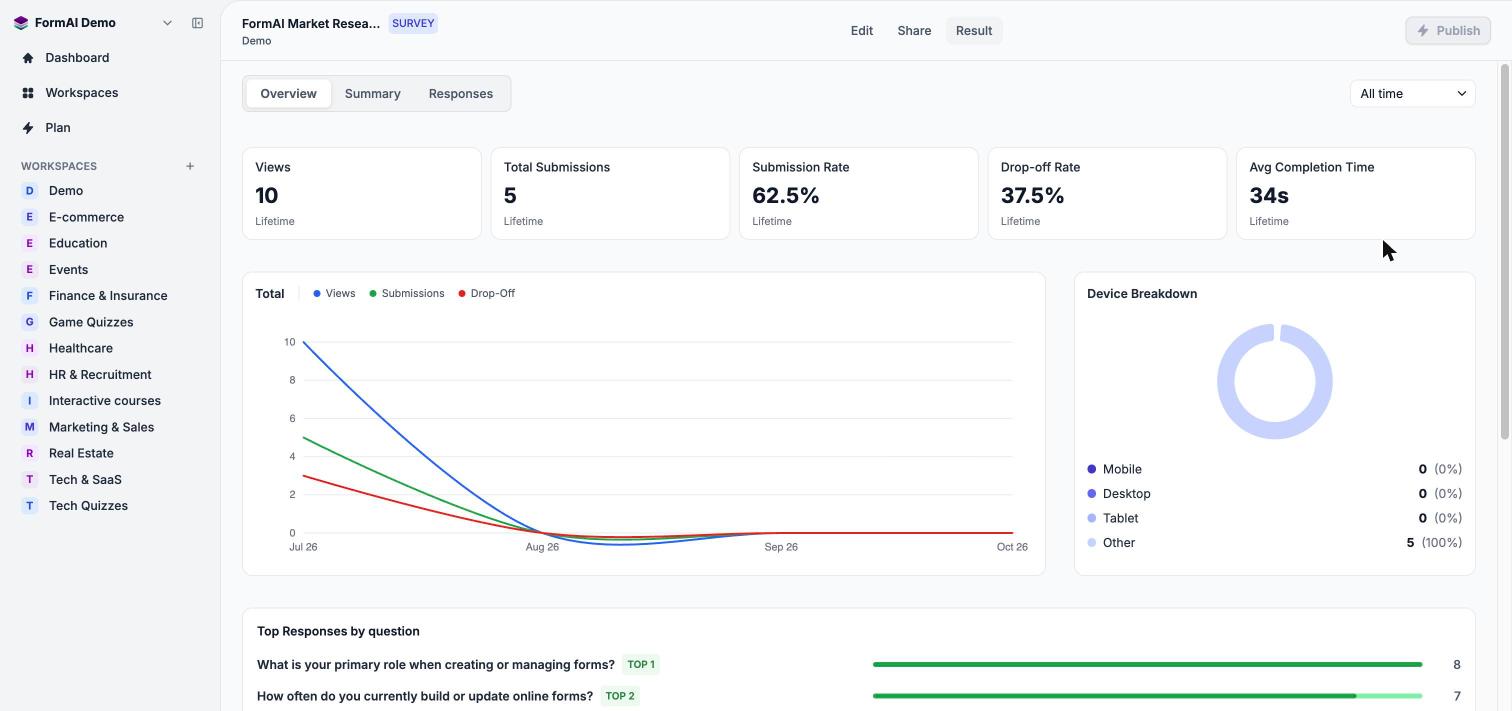 The **Overview** opens with five metric cards:
| Metric | What it tells you |
| - | - |
| **Views** | How many times the form was opened. |
| **Total Submissions** | How many people completed and submitted the form. |
| **Submission Rate** | The share of views that ended in a submission. |
| **Drop-off Rate** | The share of people who opened the form but did not finish it. |
| **Avg Completion Time** | How long people take to complete the form, on average. |
Below the cards, the **Total** chart plots Views, Submissions, and Drop-Off over time, **Device Breakdown** splits traffic into Mobile, Desktop, Tablet, and Other, and **Top Responses by question** highlights the leading answers. Before any response arrives you see "No chart data available".
### Summary
The **Overview** opens with five metric cards:
| Metric | What it tells you |
| - | - |
| **Views** | How many times the form was opened. |
| **Total Submissions** | How many people completed and submitted the form. |
| **Submission Rate** | The share of views that ended in a submission. |
| **Drop-off Rate** | The share of people who opened the form but did not finish it. |
| **Avg Completion Time** | How long people take to complete the form, on average. |
Below the cards, the **Total** chart plots Views, Submissions, and Drop-Off over time, **Device Breakdown** splits traffic into Mobile, Desktop, Tablet, and Other, and **Top Responses by question** highlights the leading answers. Before any response arrives you see "No chart data available".
### Summary
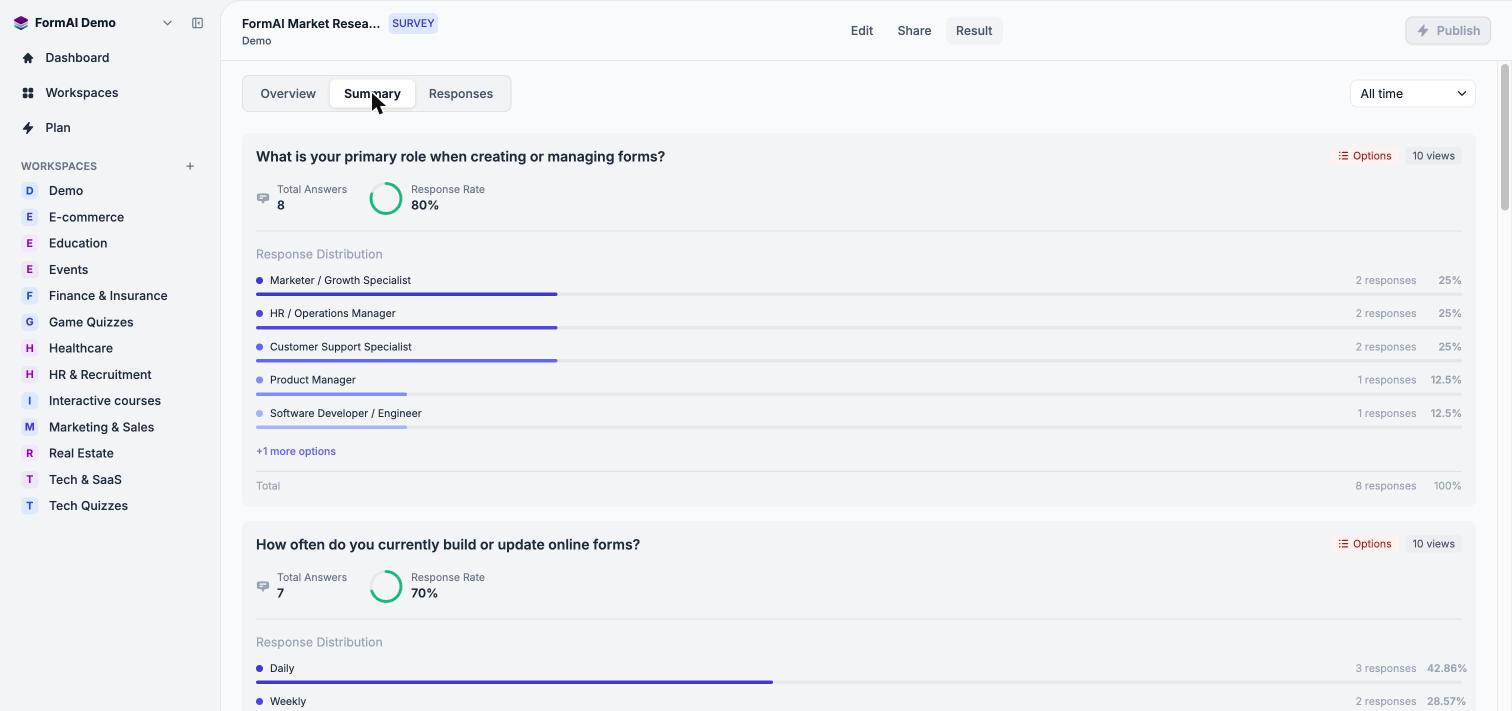 Each card shows the question type, its views, **Total Answers**, and **Response Rate**, plus a visualization for the type:
* **Options** questions show **Response Distribution** bars.
* **0 to 10 scales** show an NPS-style breakdown: Average, NPS, Detractors, Passives, Promoters, and a Score Distribution chart.
* **Matrix** questions show a heatmap grid with a **Transpose** option and a Low to High response volume legend.
See [Question summaries](/user-guide/results/question-summaries).
### Responses
Each card shows the question type, its views, **Total Answers**, and **Response Rate**, plus a visualization for the type:
* **Options** questions show **Response Distribution** bars.
* **0 to 10 scales** show an NPS-style breakdown: Average, NPS, Detractors, Passives, Promoters, and a Score Distribution chart.
* **Matrix** questions show a heatmap grid with a **Transpose** option and a Low to High response volume legend.
See [Question summaries](/user-guide/results/question-summaries).
### Responses
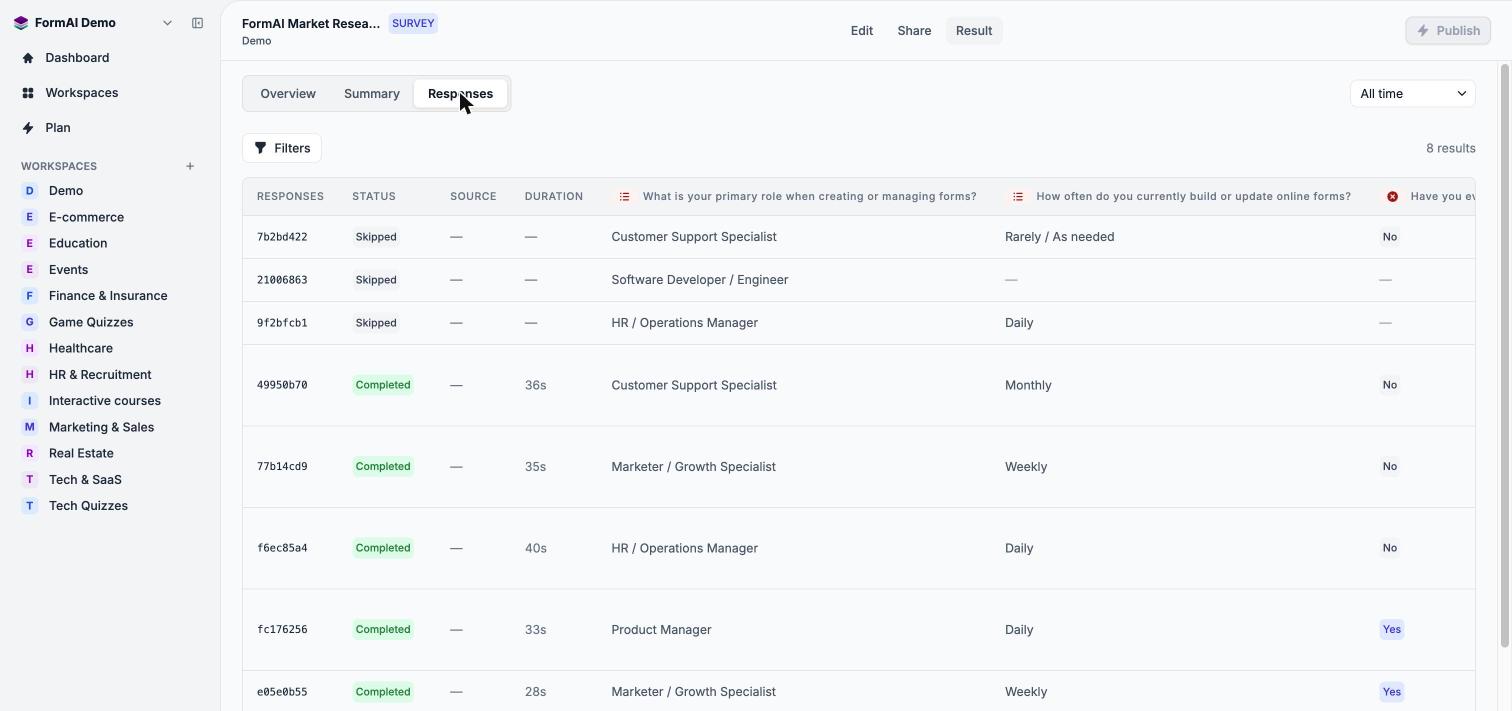 The table lists each response with its short ID, **Status**, **Source**, and **Duration**, followed by one column per question. Use **Filters** to narrow by status: **All statuses**, **Completed**, or **Skipped**. Select a row to open a side panel with every answer, the status, the duration, and the date. See [Individual responses](/user-guide/results/individual-responses).
## Results across forms
The **Dashboard** rolls the same metrics up across your forms. You can filter it by form type and date range, switch workspaces with the selector, and open a form's results from the **Recent Forms** table. The workspace header's analytics button opens the Dashboard filtered to that workspace.
On the Dashboard, the **Analytics** tab and the **Live** filter carry a clock badge, which means they are coming soon.
## What is not available yet
Exporting responses is not available yet. The Responses page has no export button, so you cannot download results as a CSV, Excel, PDF, or JSON file today. FormAI also does not generate AI analysis reports across responses yet. The [roadmap](/user-guide/roadmap) lists what is planned.
## Next steps
Read the headline metrics and filter by date.
Interpret each visualization.
Filter the table and open a response.
This documentation is built and hosted on [Mintlify](https://mintlify.com), a developer documentation platform.
The table lists each response with its short ID, **Status**, **Source**, and **Duration**, followed by one column per question. Use **Filters** to narrow by status: **All statuses**, **Completed**, or **Skipped**. Select a row to open a side panel with every answer, the status, the duration, and the date. See [Individual responses](/user-guide/results/individual-responses).
## Results across forms
The **Dashboard** rolls the same metrics up across your forms. You can filter it by form type and date range, switch workspaces with the selector, and open a form's results from the **Recent Forms** table. The workspace header's analytics button opens the Dashboard filtered to that workspace.
On the Dashboard, the **Analytics** tab and the **Live** filter carry a clock badge, which means they are coming soon.
## What is not available yet
Exporting responses is not available yet. The Responses page has no export button, so you cannot download results as a CSV, Excel, PDF, or JSON file today. FormAI also does not generate AI analysis reports across responses yet. The [roadmap](/user-guide/roadmap) lists what is planned.
## Next steps
Read the headline metrics and filter by date.
Interpret each visualization.
Filter the table and open a response.
This documentation is built and hosted on [Mintlify](https://mintlify.com), a developer documentation platform.