> ## Documentation Index
> Fetch the complete documentation index at: https://docs.formai.app/llms.txt
> Use this file to discover all available pages before exploring further.
# Form types
> Survey, Quiz, and Live: what each FormAI form type is for, how it is scored, how people take it, and how you share it.
Every FormAI form is one of three types: a **Survey**, a **Quiz**, or a **Live** session. You choose the type with the tabs in the **Create a new form** dialog, and it shows as a badge (SURVEY, QUIZ, or LIVE) in the editor and on the workspace board.
## Compare the types
| | Survey | Quiz | Live |
| - | - | - | - |
| **Best for** | Feedback, research, registrations | Knowledge checks and assessments | Interactive sessions with an audience |
| **Who answers** | Respondents | Respondents | Participants |
| **Pace** | Respondents go through it on their own | Respondents go through it on their own | The presenter advances the questions |
| **Scoring** | None | Points per question, with correct answers | Scored questions feed a leaderboard |
| **How people join** | Share link, embed, or email button | Share link, embed, or email button | Live PIN or QR code, from a phone browser |
| **Question types** | Survey and Quiz question menu | Survey and Quiz question menu | Dedicated Live question menu |
FormAI uses "respondent" for people who take a Survey or Quiz, and "participant" for people who join a Live session.
## Survey
A survey collects answers without right or wrong. Use it for customer feedback, market research, event feedback, or onboarding check-ins. Shorter surveys finish better: when you generate one, FormAI reminds you that surveys finish best under 8 questions.
You can share a published survey as a link, embed it on a page, or paste an email button into a campaign. See [Publish and share](/user-guide/share/publish-and-share).
## Quiz
A quiz is a form with correct answers and scoring. You mark the correct answer directly on the canvas, give each question points, and optionally add an explanation that appears with the correction.
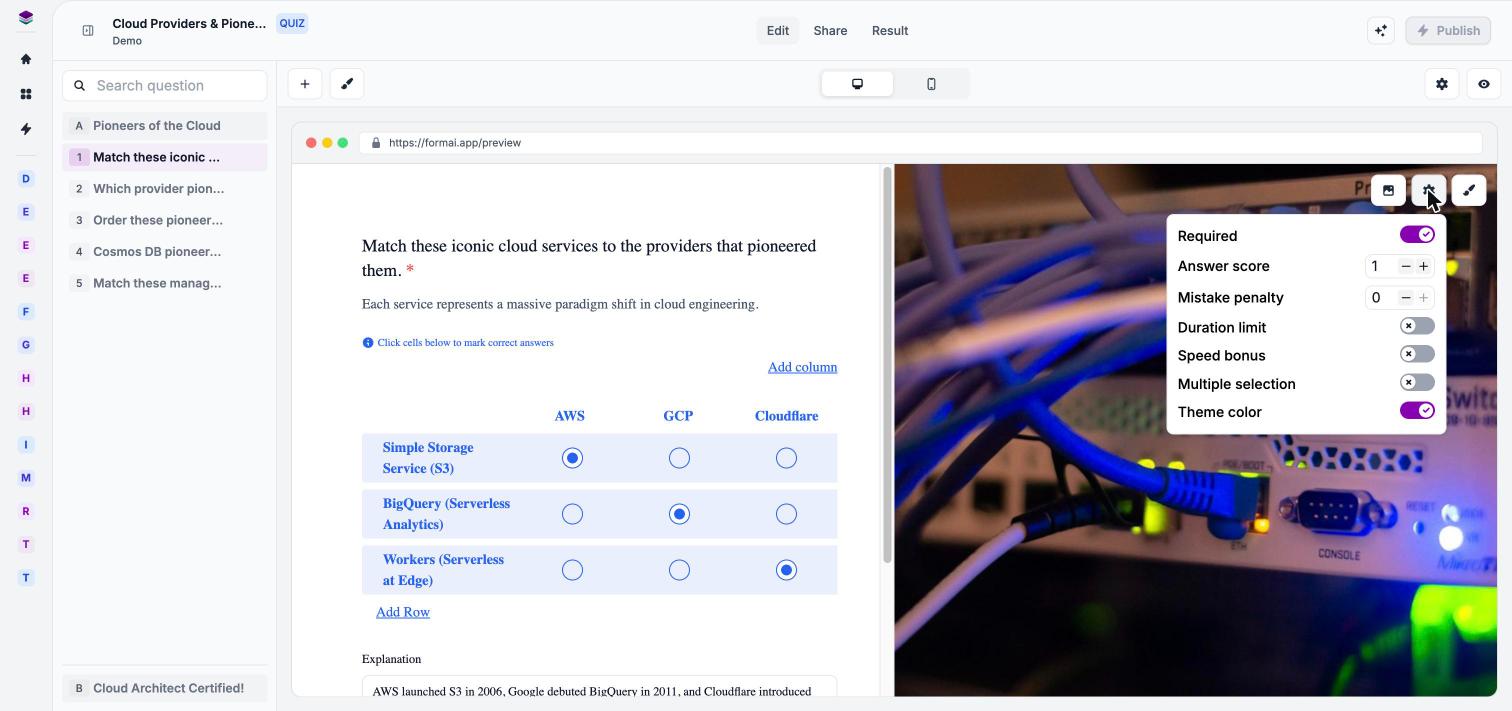 Scored questions have these settings: **Answer score** (points, default 1), **Mistake penalty** (default 0), **Duration limit**, and **Speed bonus**. In **Form settings**, **Show Answers** controls when correct answers are revealed, for example **After each question**, and **Show Score** shows respondents their score after they submit.
See [Scoring and answers](/user-guide/quizzes/scoring-and-answers).
## Live
A live session is presenter-led. Participants join from a phone browser with a Live PIN or QR code, with no account and no app. The presenter advances through the questions and reveals answers, and scored questions feed a leaderboard.
Scored questions have these settings: **Answer score** (points, default 1), **Mistake penalty** (default 0), **Duration limit**, and **Speed bonus**. In **Form settings**, **Show Answers** controls when correct answers are revealed, for example **After each question**, and **Show Score** shows respondents their score after they submit.
See [Scoring and answers](/user-guide/quizzes/scoring-and-answers).
## Live
A live session is presenter-led. Participants join from a phone browser with a Live PIN or QR code, with no account and no app. The presenter advances through the questions and reveals answers, and scored questions feed a leaderboard.
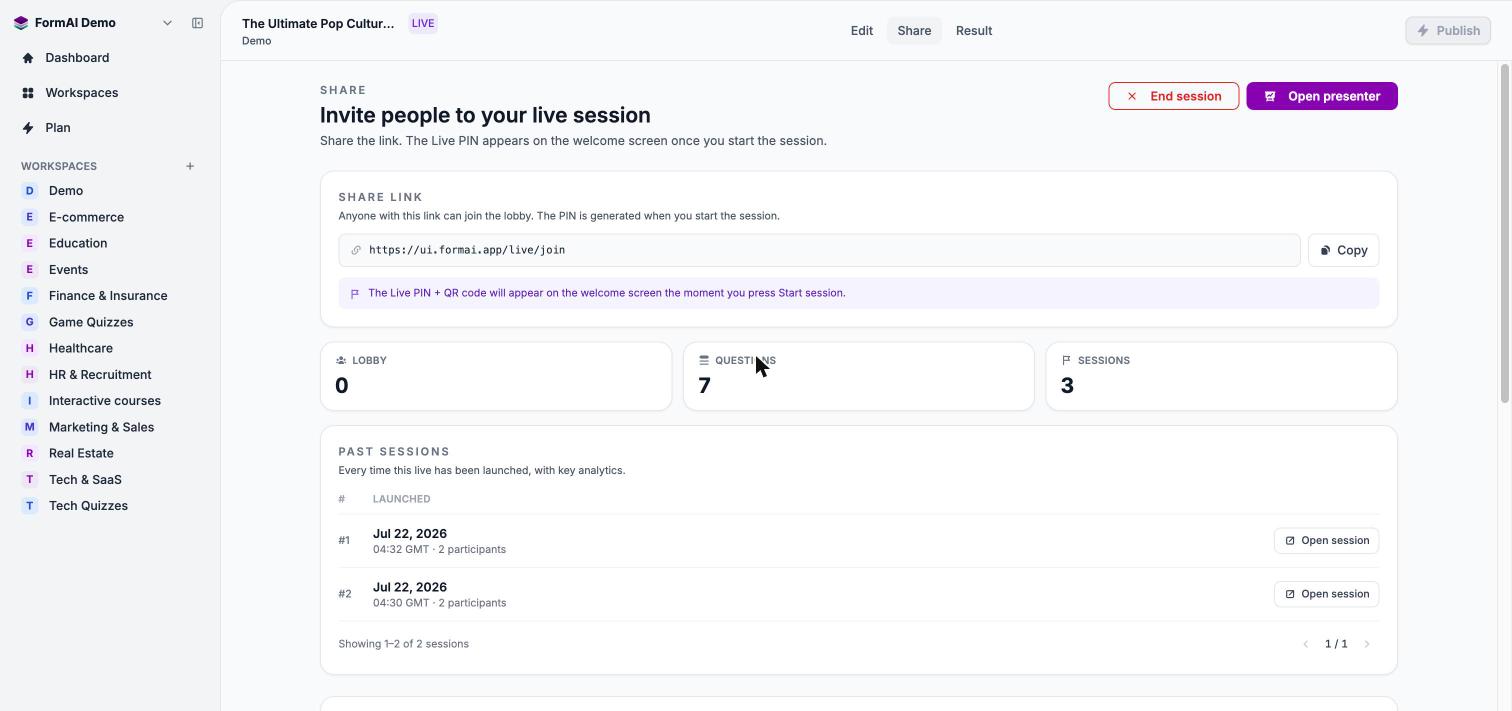 A session moves through these stages:
1. **Lobby.** You select **Open presenter** on the **Share** tab. The presenter view shows the Live PIN, a QR code, and the participant count, and participants who open the join link wait in the lobby.
2. **Start.** When the room is ready, the presenter selects **Start Now**.
3. **Questions.** The presenter advances the questions and reveals answers.
4. **Past sessions.** Each time you launch the form, a session is recorded under **PAST SESSIONS**, where **Open session** lets you replay it.
Live forms have their own question menu, with types such as Word Cloud, Brainstorm, Q & A, and Drag & Drop. See [Host a live session](/user-guide/live/host-a-live-session) and [Live question types](/user-guide/live/live-question-types).
QR codes exist for Live sessions only. Survey and Quiz forms are shared with a link, an embed, or an email button.
## Next steps
How you build any of the three types.
The full list for Survey and Quiz forms.
Set correct answers, points, and penalties.
Open the lobby and run a session.
This documentation is built and hosted on [Mintlify](https://mintlify.com), a developer documentation platform.
A session moves through these stages:
1. **Lobby.** You select **Open presenter** on the **Share** tab. The presenter view shows the Live PIN, a QR code, and the participant count, and participants who open the join link wait in the lobby.
2. **Start.** When the room is ready, the presenter selects **Start Now**.
3. **Questions.** The presenter advances the questions and reveals answers.
4. **Past sessions.** Each time you launch the form, a session is recorded under **PAST SESSIONS**, where **Open session** lets you replay it.
Live forms have their own question menu, with types such as Word Cloud, Brainstorm, Q & A, and Drag & Drop. See [Host a live session](/user-guide/live/host-a-live-session) and [Live question types](/user-guide/live/live-question-types).
QR codes exist for Live sessions only. Survey and Quiz forms are shared with a link, an embed, or an email button.
## Next steps
How you build any of the three types.
The full list for Survey and Quiz forms.
Set correct answers, points, and penalties.
Open the lobby and run a session.
This documentation is built and hosted on [Mintlify](https://mintlify.com), a developer documentation platform.